1. Install the App
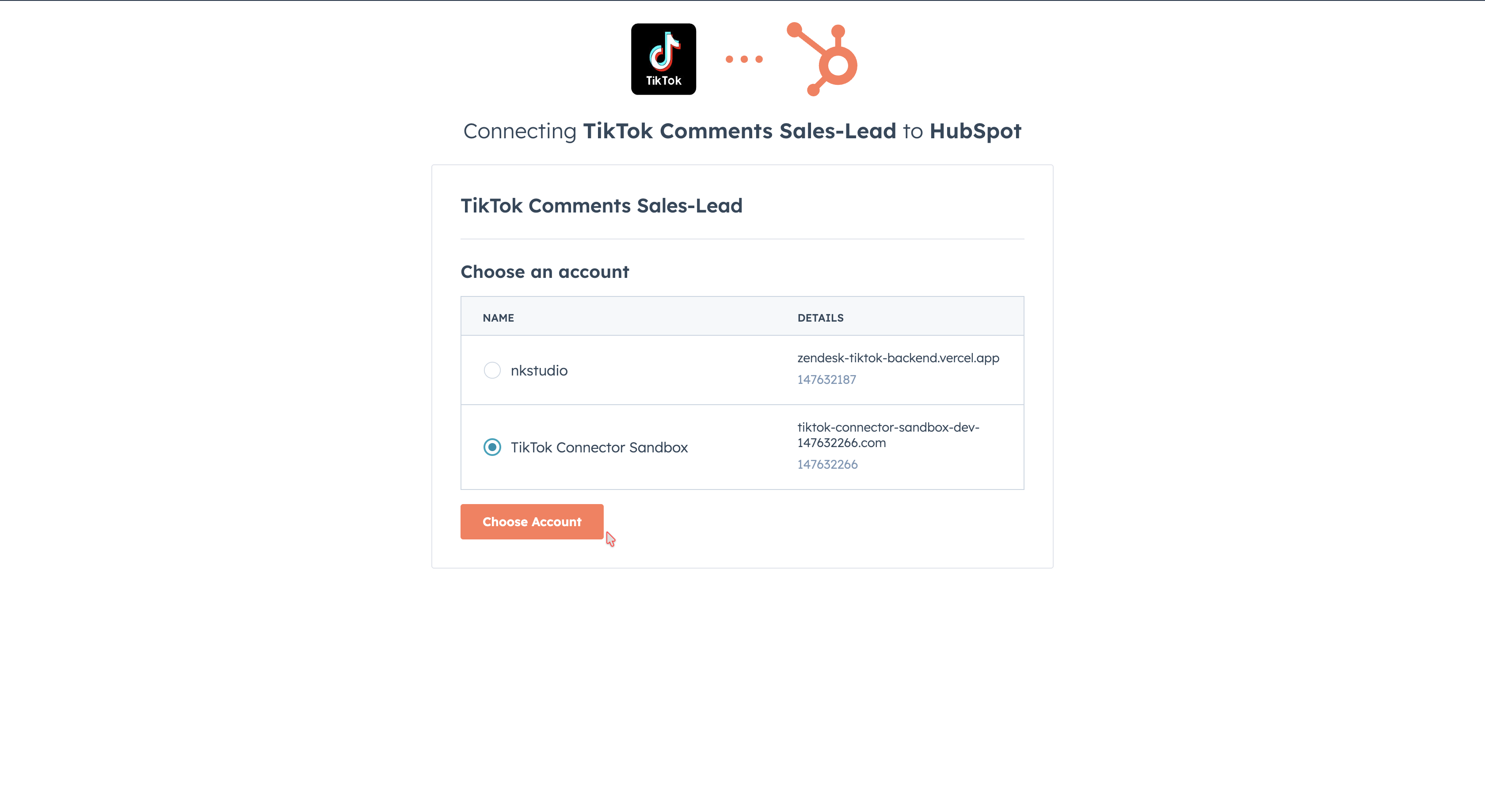
1 Choose Your HubSpot Account
From the HubSpot Marketplace listing, click "Install App" and select the account you want to use.
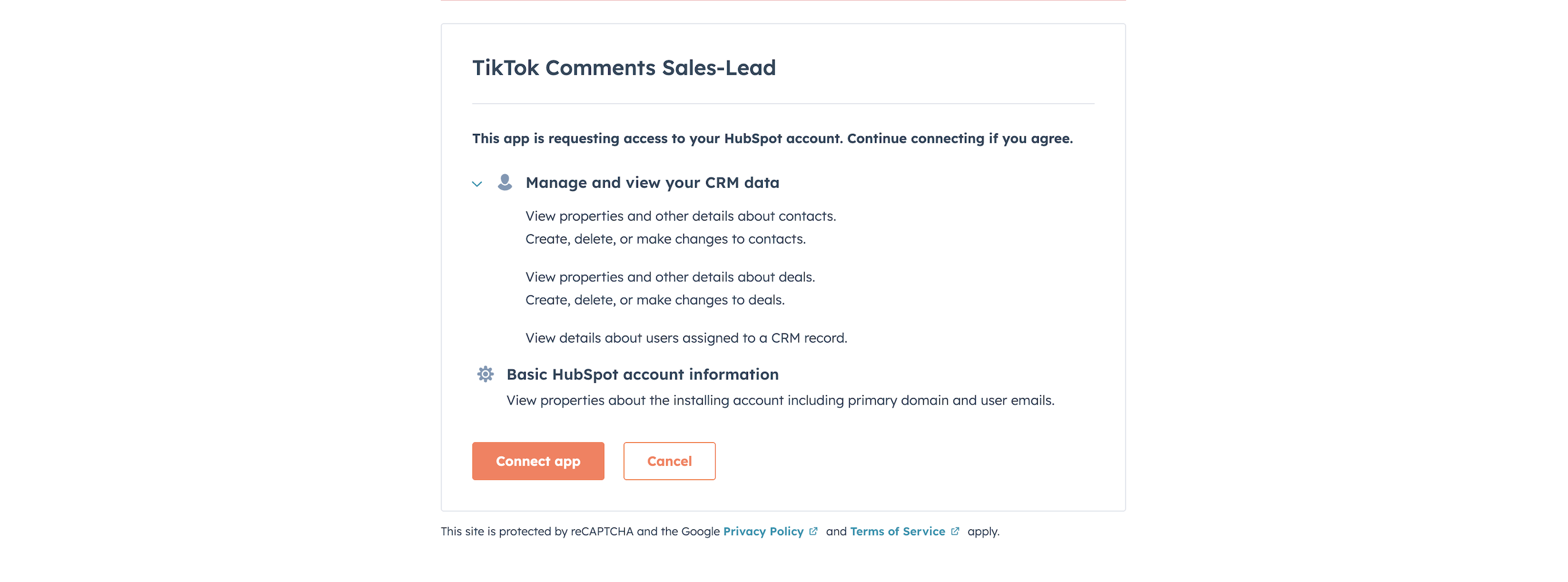
2 Review and Approve OAuth Scopes
Review the permissions the app requests. These scopes allow the app to read and create deals, view contacts, and access your account information.
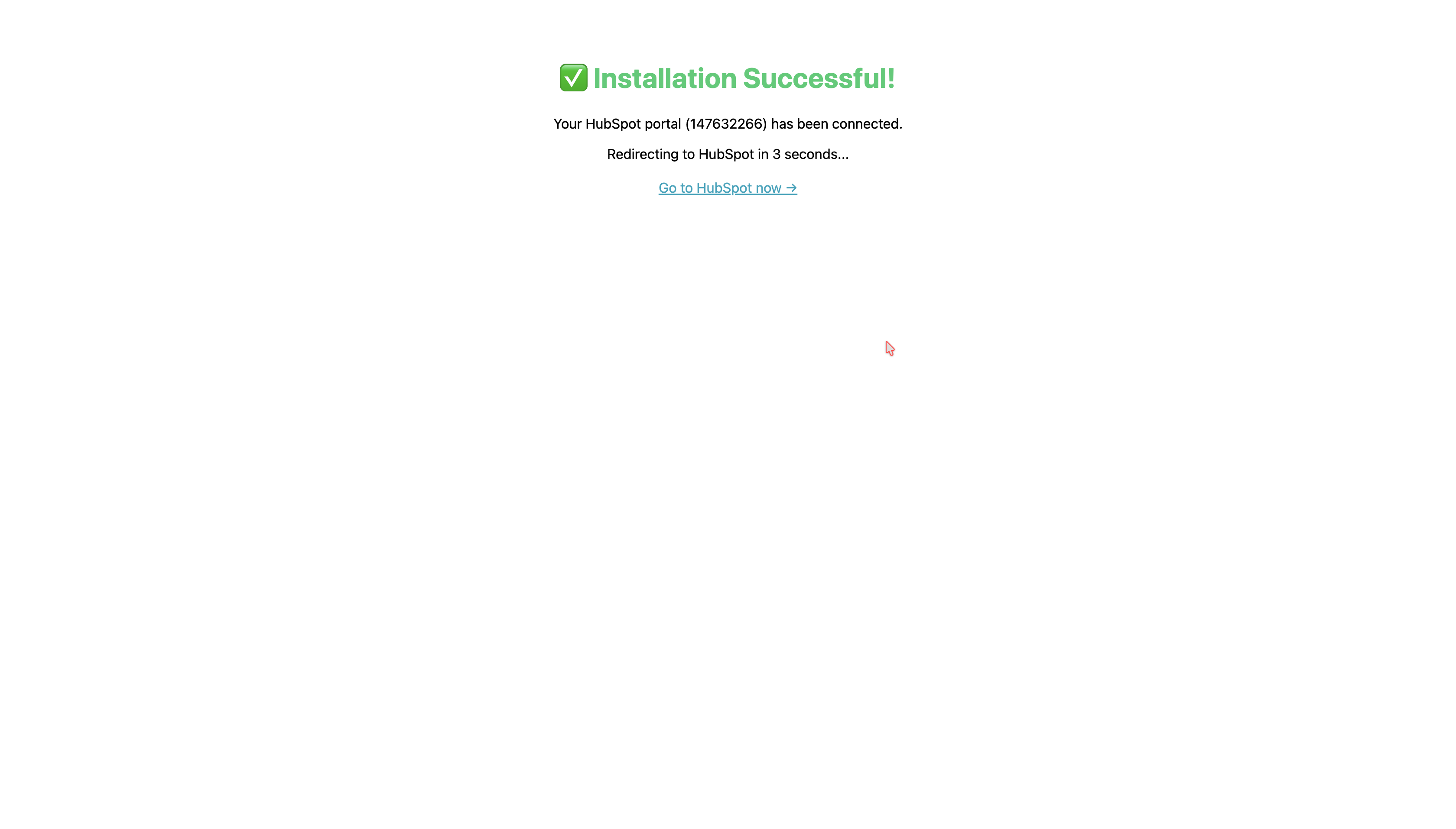
3 Installation Complete
Once approved, you'll see a success confirmation.
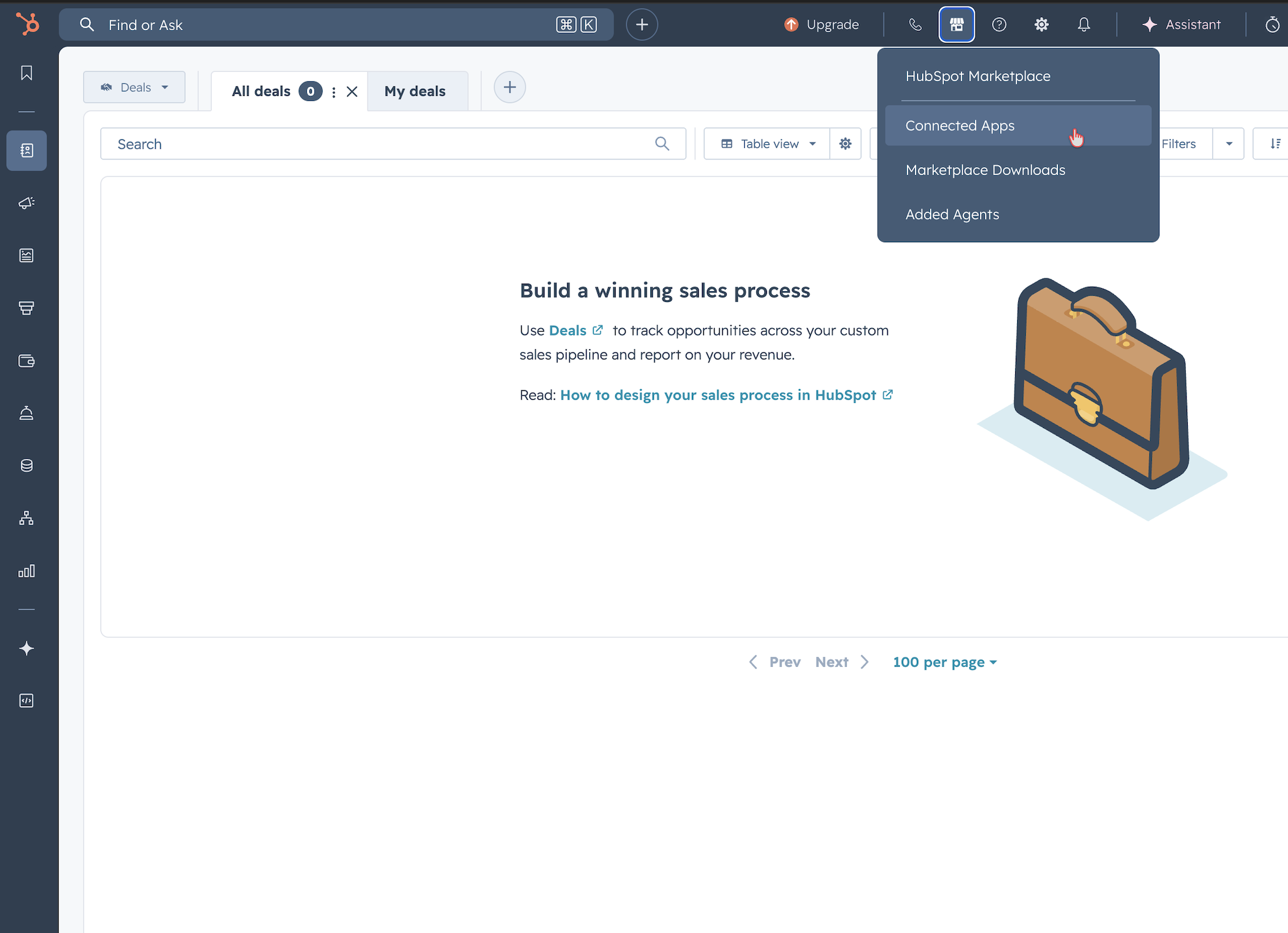
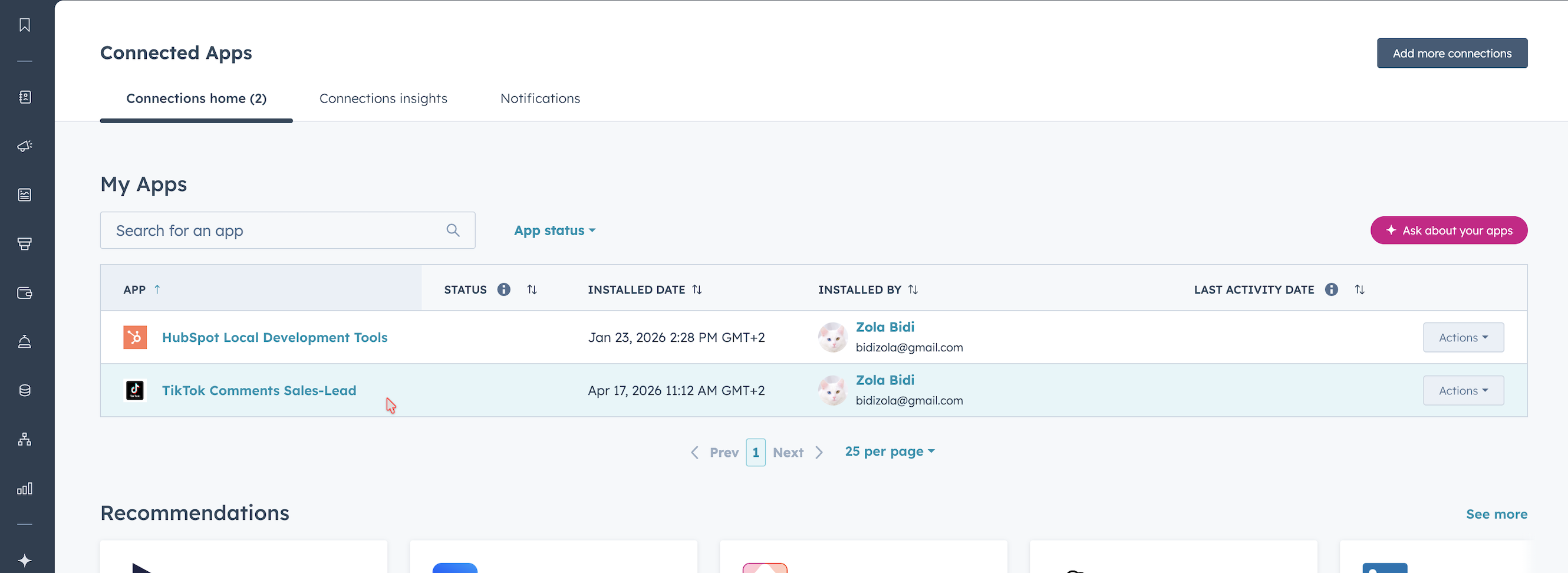
4 Access Connected Apps
Navigate to Settings → Connected Apps to see your installed apps.
5 Open the App
Click on "TikTok Comments Sales-Lead" to open the app.
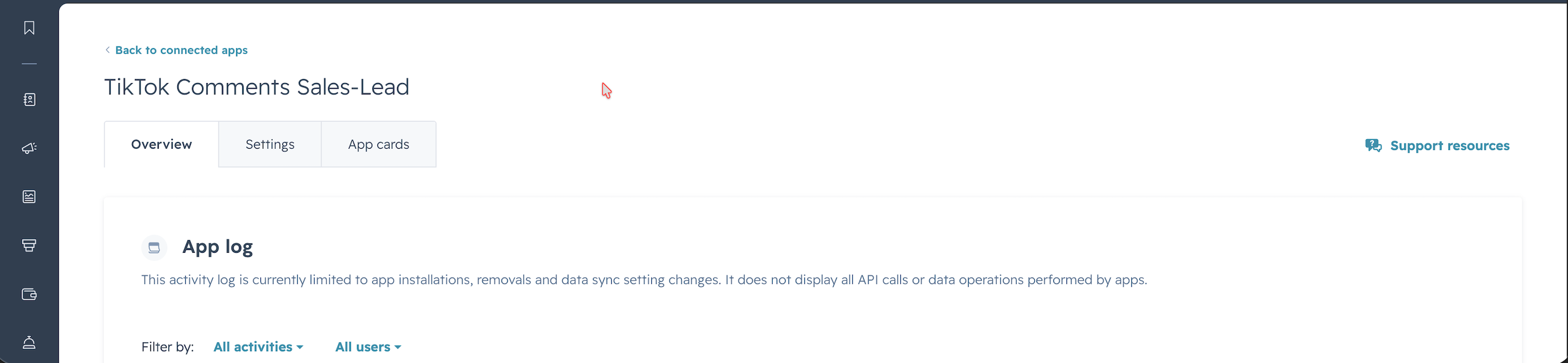
6 App Overview
Review the app overview page.
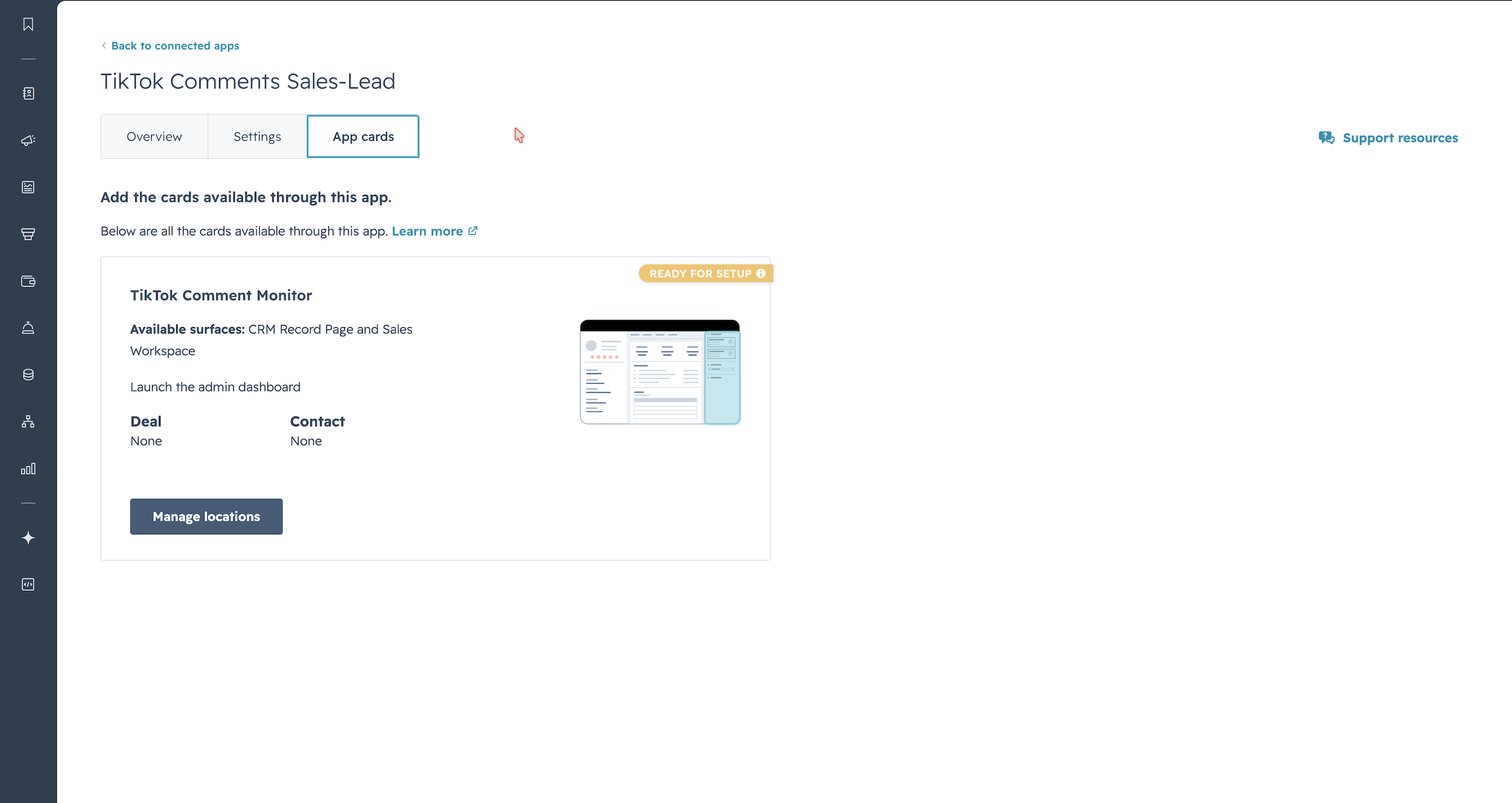
7 Manage App Locations
Open the app card and manage where the app appears in your HubSpot interface.
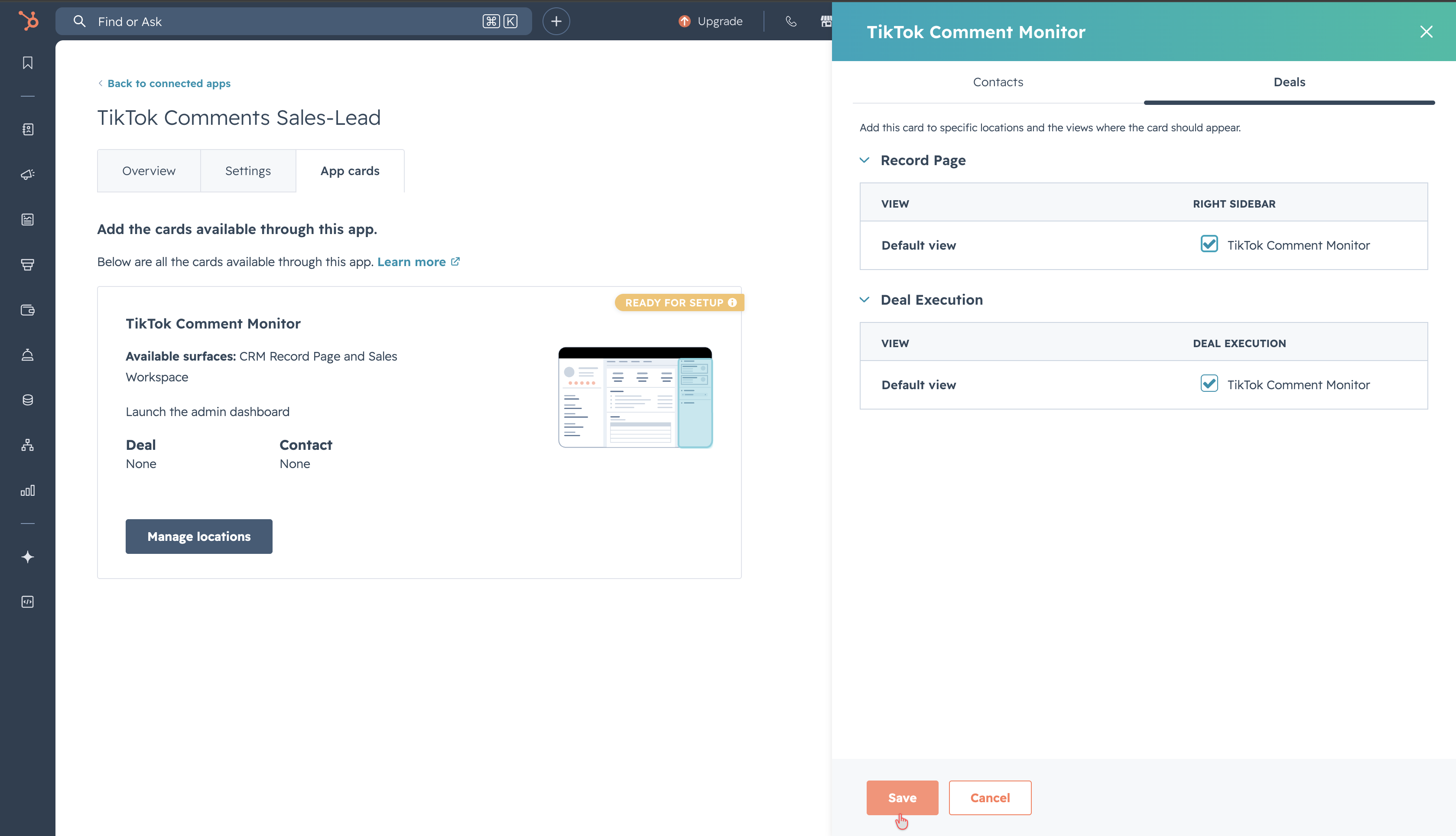
8 Configure Record Access
Click on Deals and select "Record and deal execution" to enable the app's functionality.
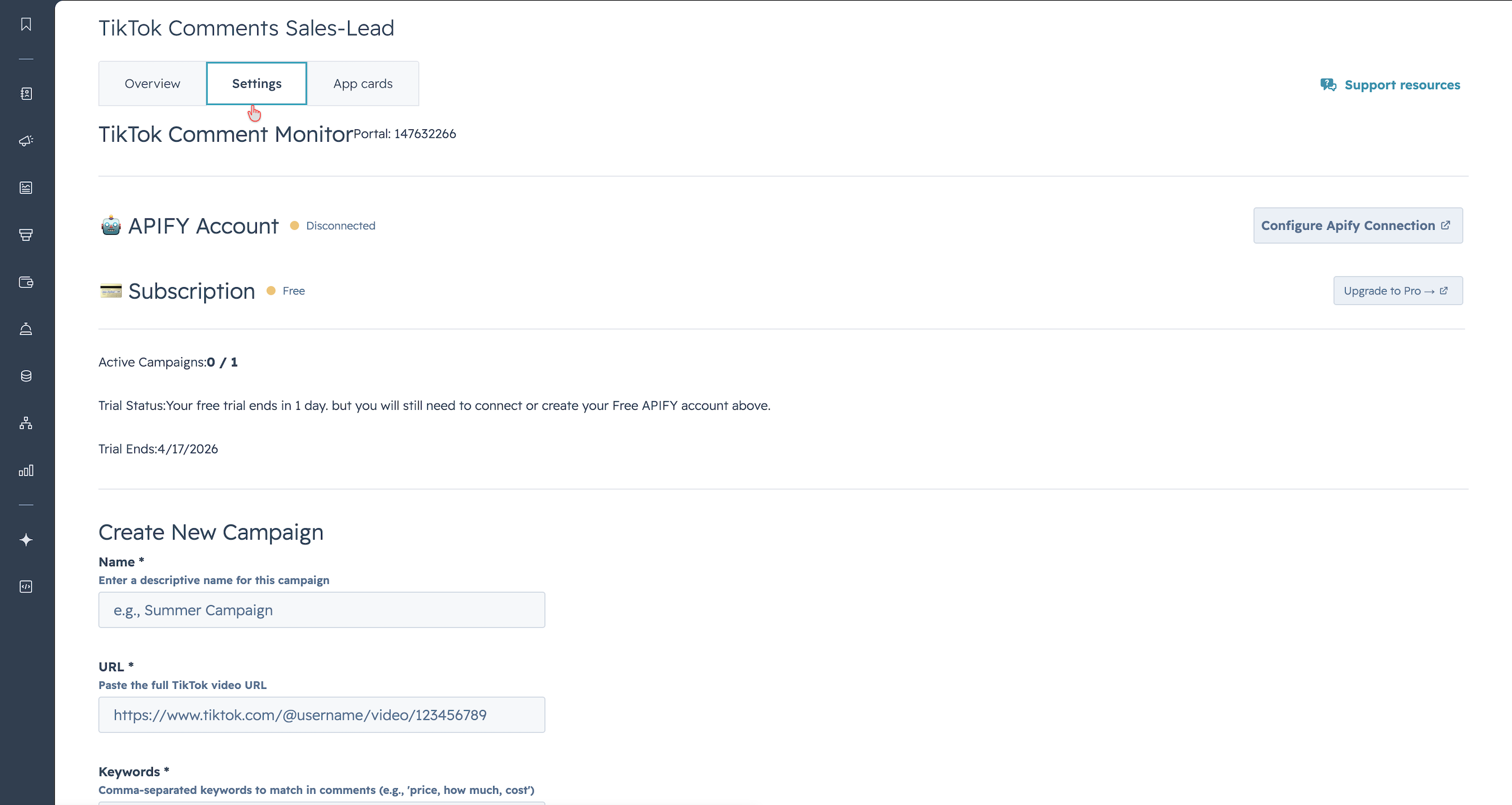
9 Open App Settings
Click Settings to open the TikTok Comments Sales-Lead configuration page.
2. Connect Your Apify Account
The app uses Apify to scrape TikTok comments. You'll need a free Apify account to get started.
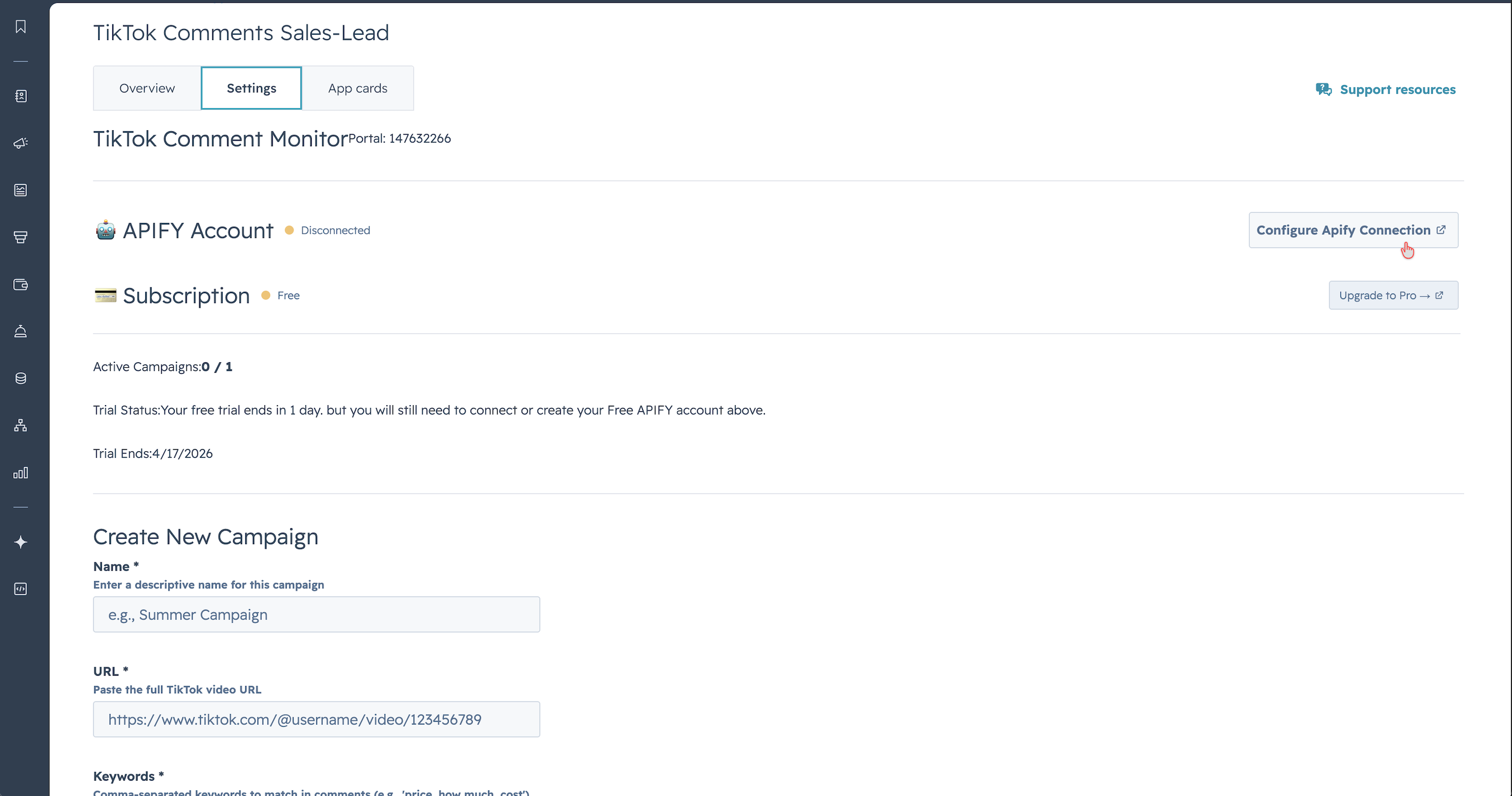
1 Click Configure Apify
In the app settings page, click "Configure Apify Connection".
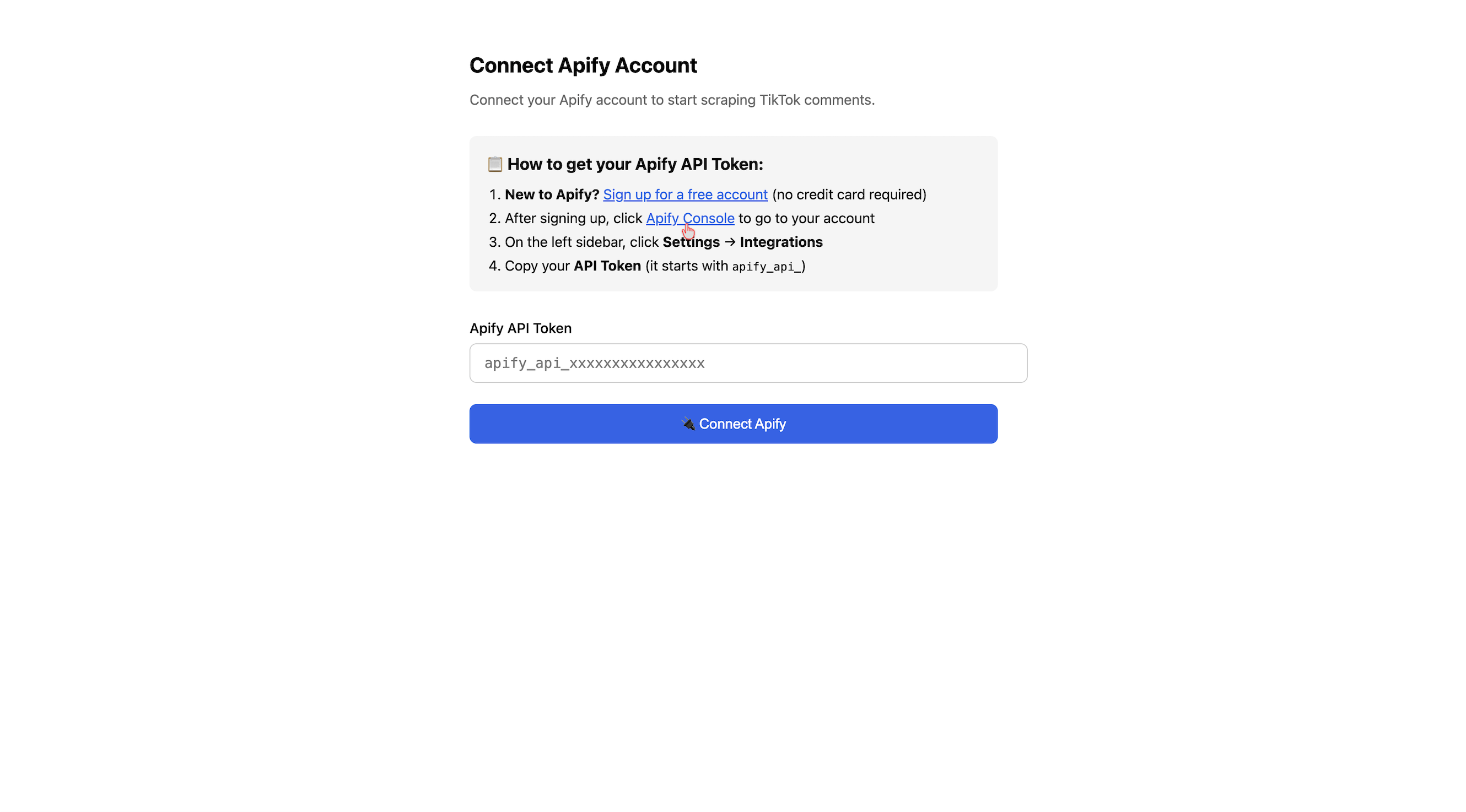
2 Sign Up or Sign In to Apify
Open Apify in a new tab. Sign up for a free account — no credit card required.
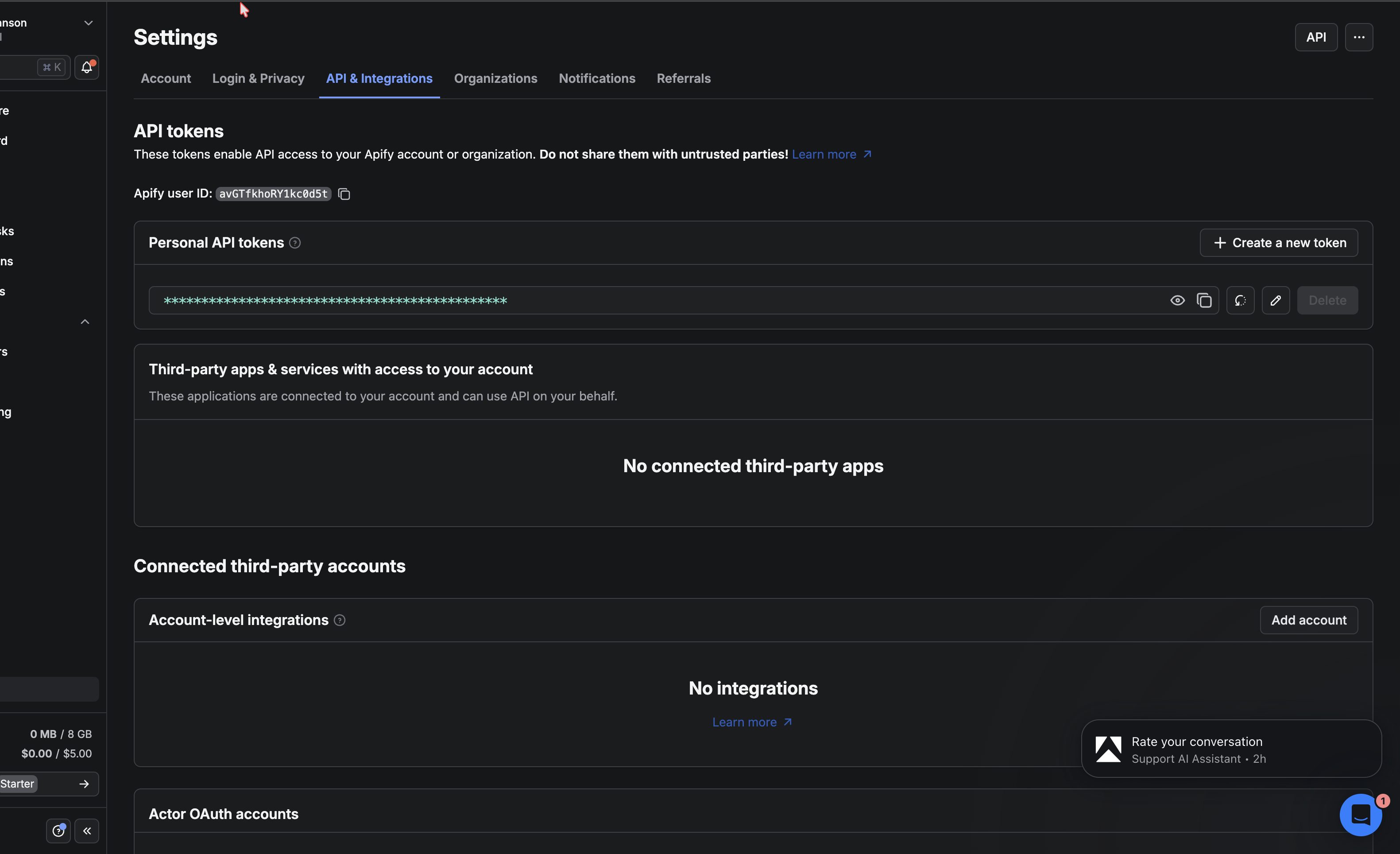
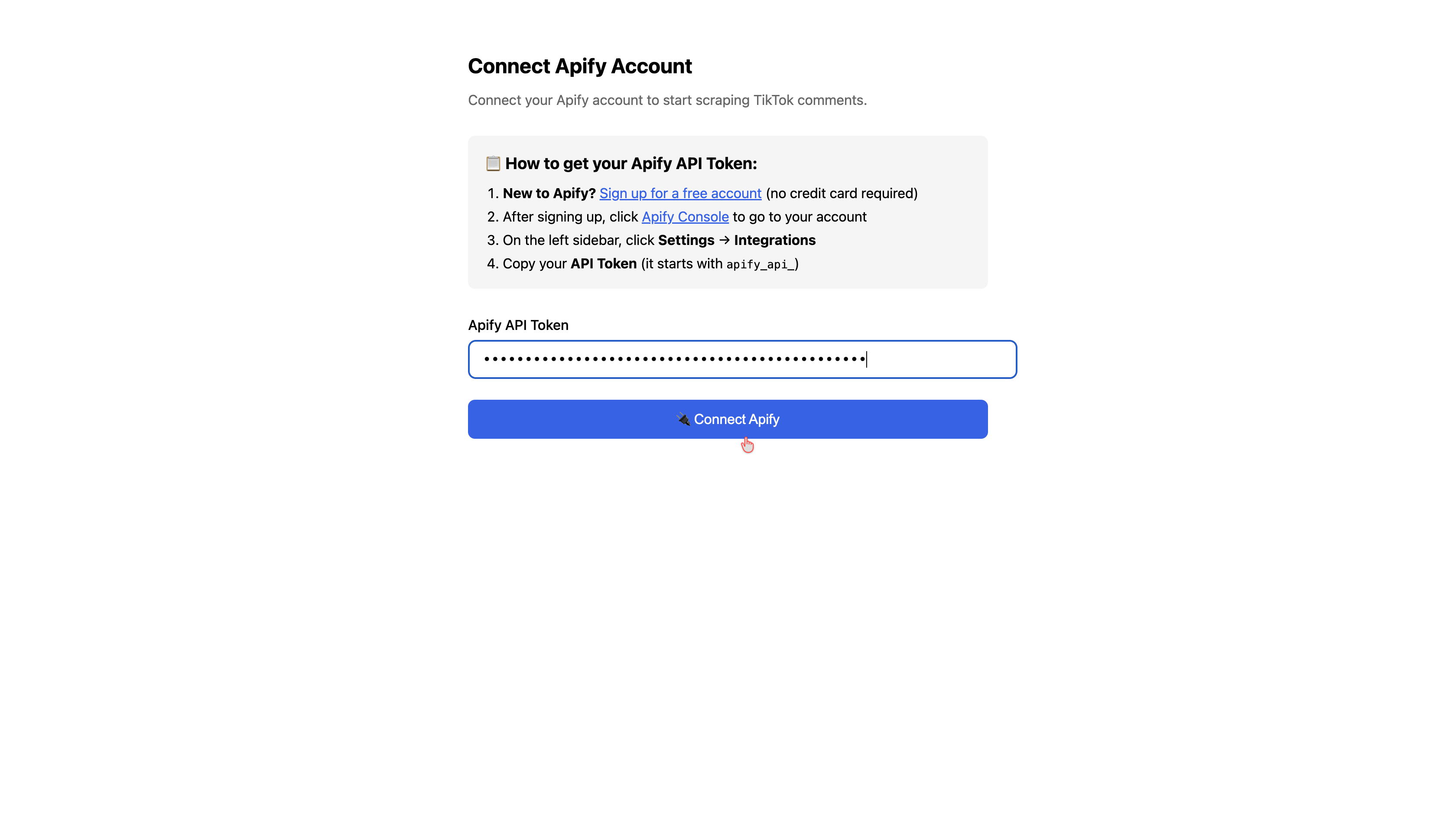
3 Copy Your Apify API Token
In Apify, go to Settings → Integrations and copy your API token.
4 Connect Apify to the App
Paste your token into the connection page and click Connect.
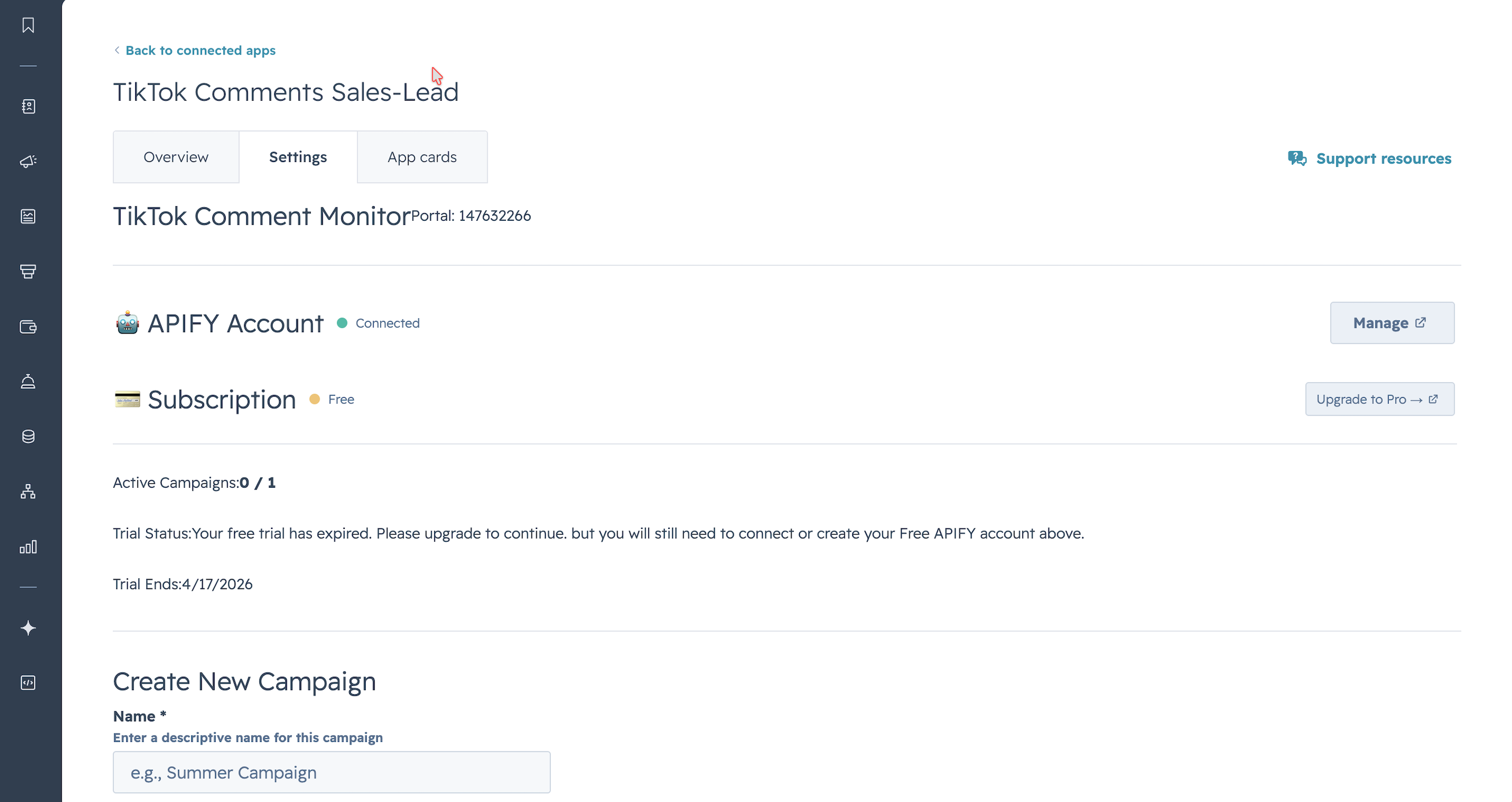
5 Connection Successful
You'll see a confirmation that Apify is connected, along with your account details and usage statistics.
3. Configure Apify Settings
View your Apify usage and adjust global scraping limits.
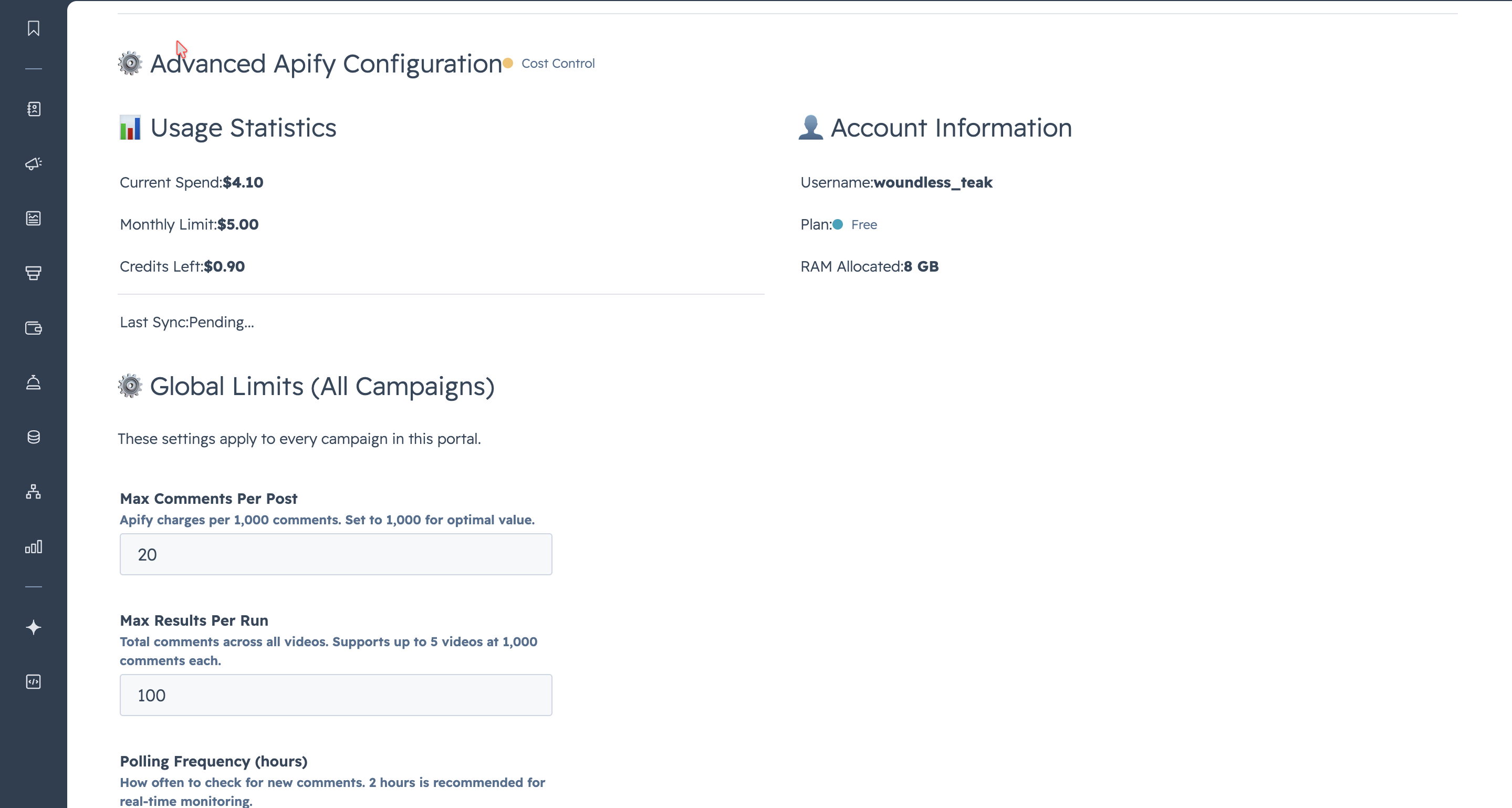
1 View Account Information
The Apify section shows your account username, plan type, and memory allocation.
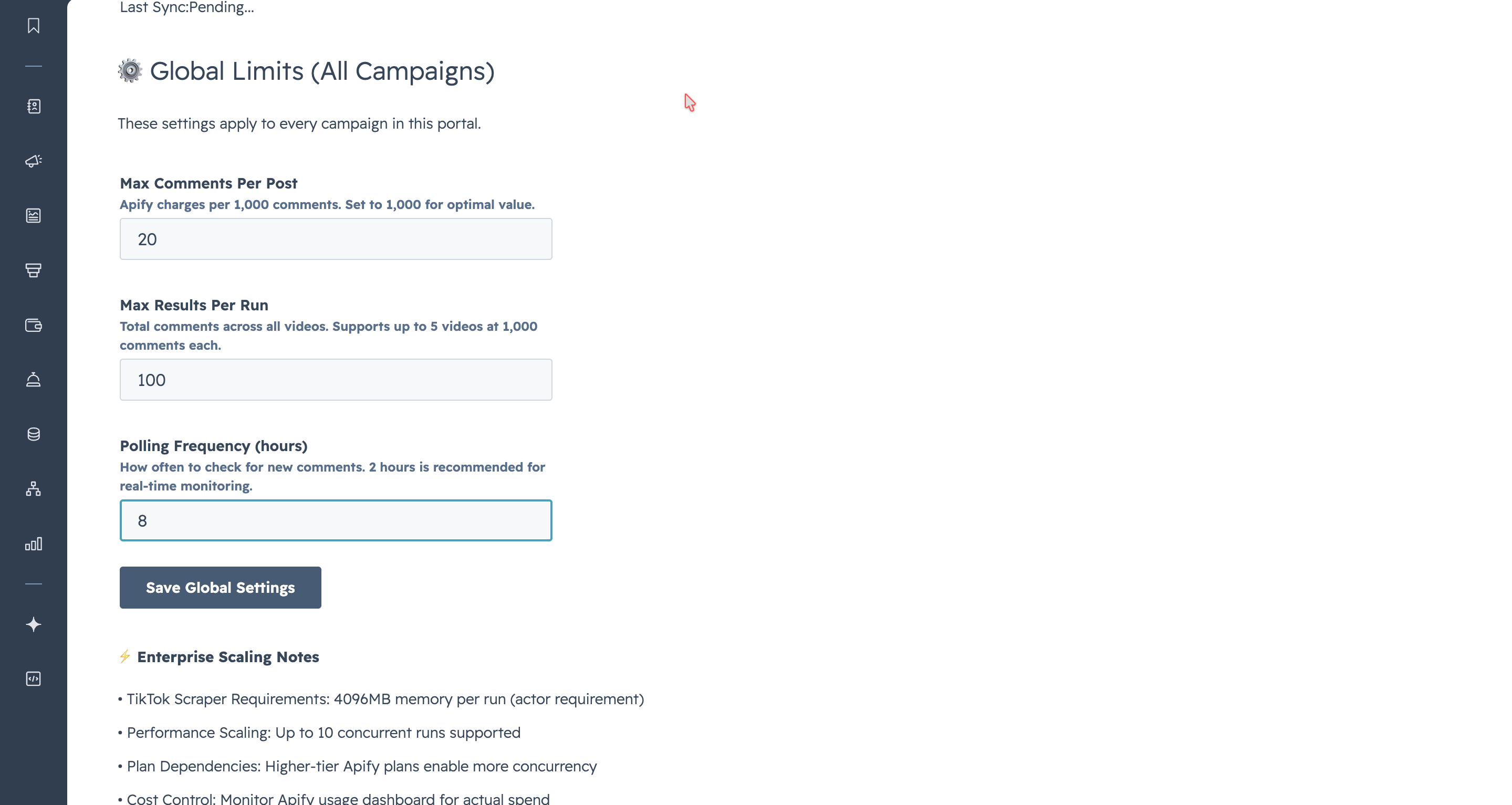
2 Configure Global Limits
Set the maximum comments per post, results per run, and polling frequency. These apply to all campaigns.
4. Create and Manage Campaigns
Campaigns monitor specific TikTok videos for comments matching your keywords.
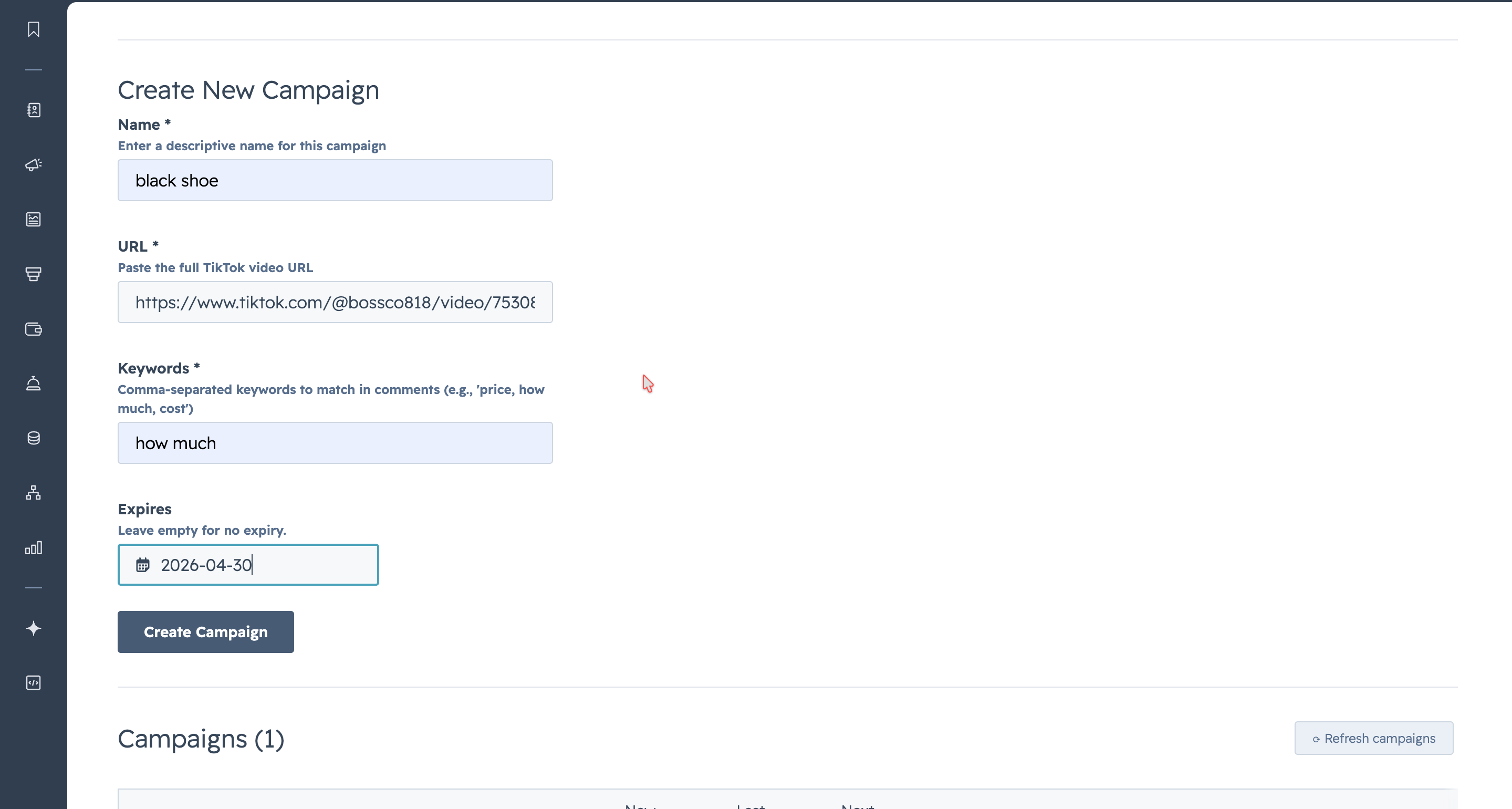
1 Create a New Campaign
Fill in the campaign name, TikTok video URL, keywords to monitor, and an optional expiry date. Click "Create Campaign".
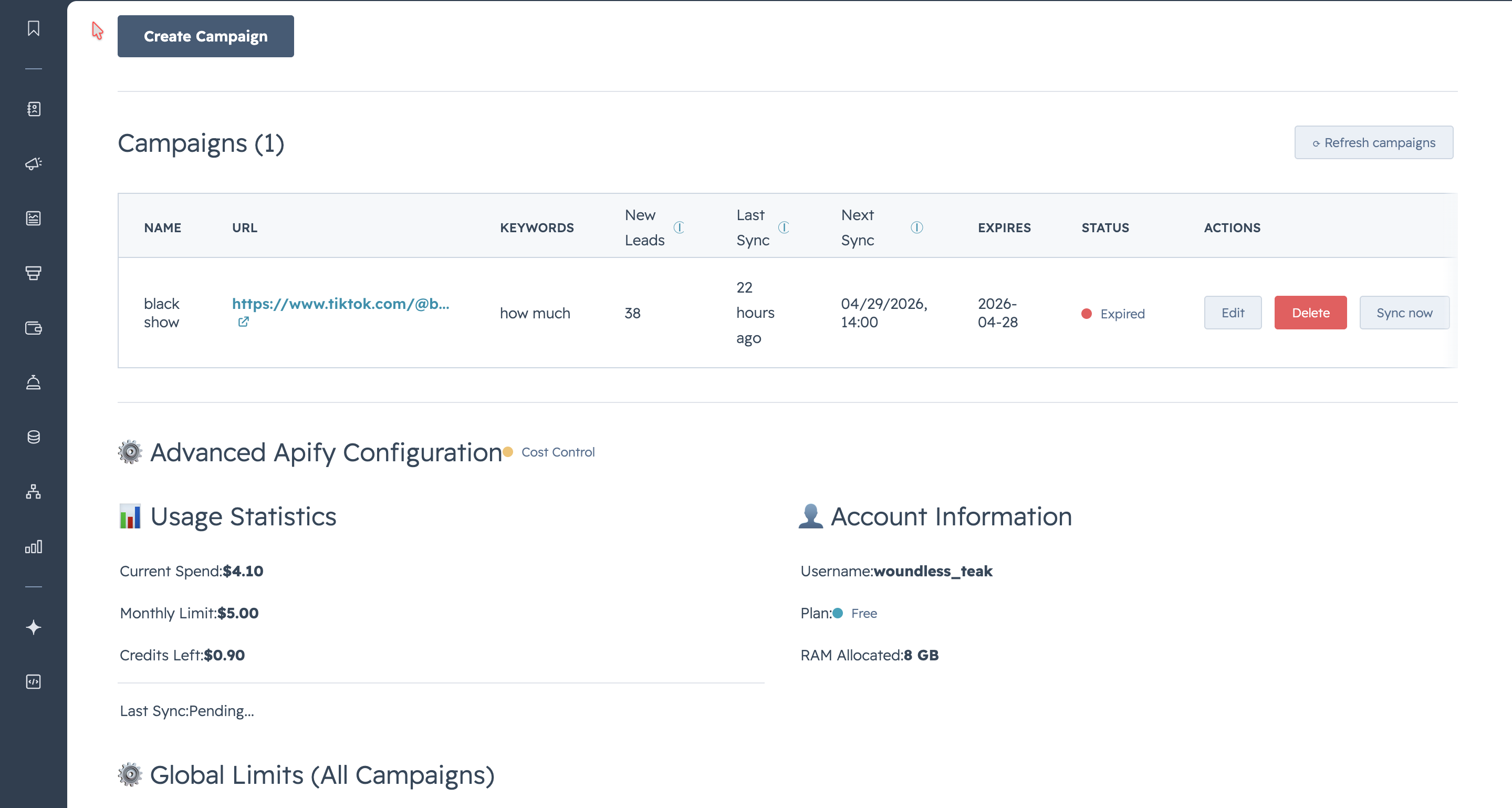
2 Active Campaign Saved
Your campaign is now active and will be scraped according to your polling schedule.
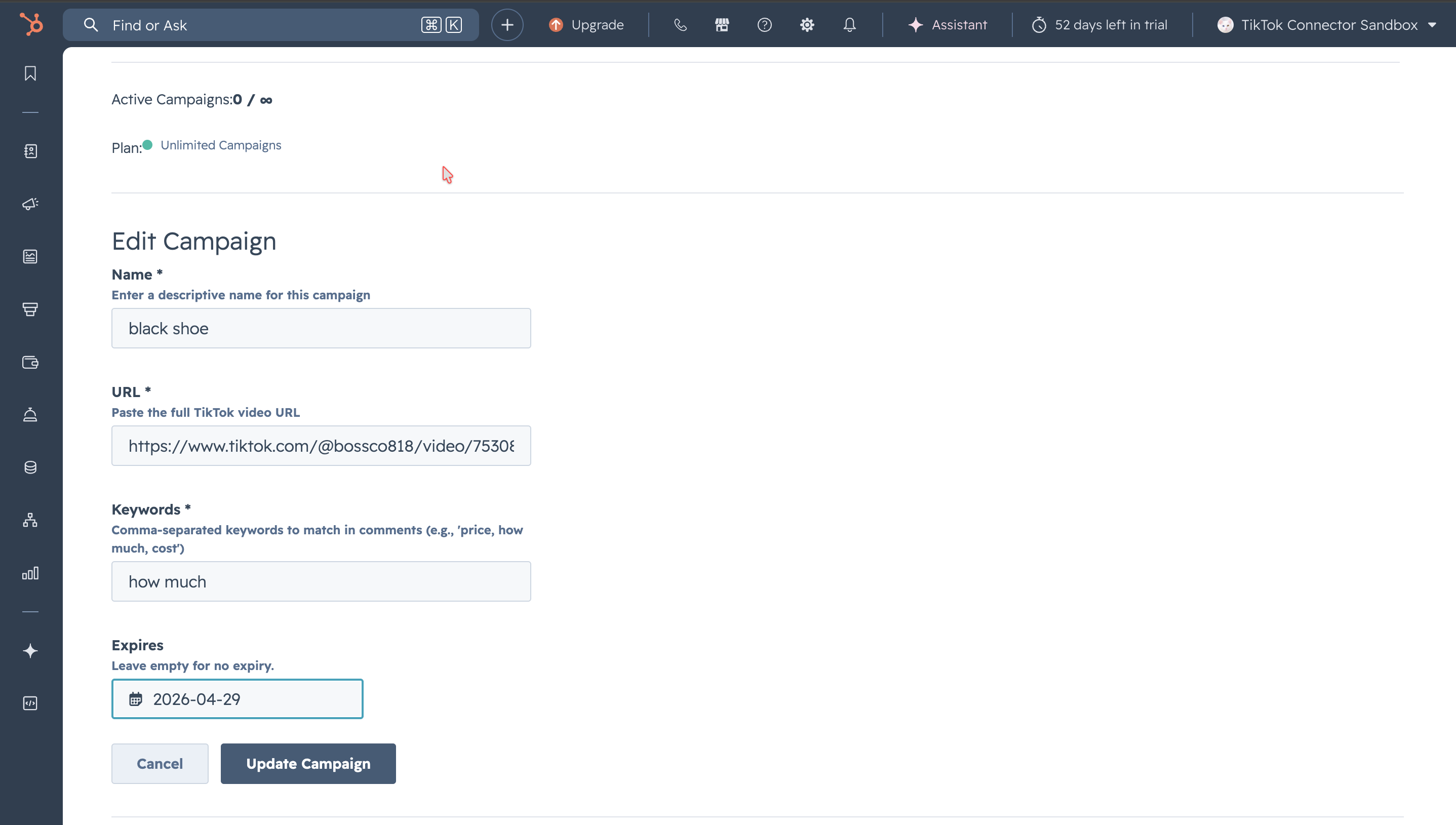
3 Edit a Campaign
You can edit any campaign's name, URL, keywords, or expiry date. Changing keywords automatically re-evaluates existing comments.
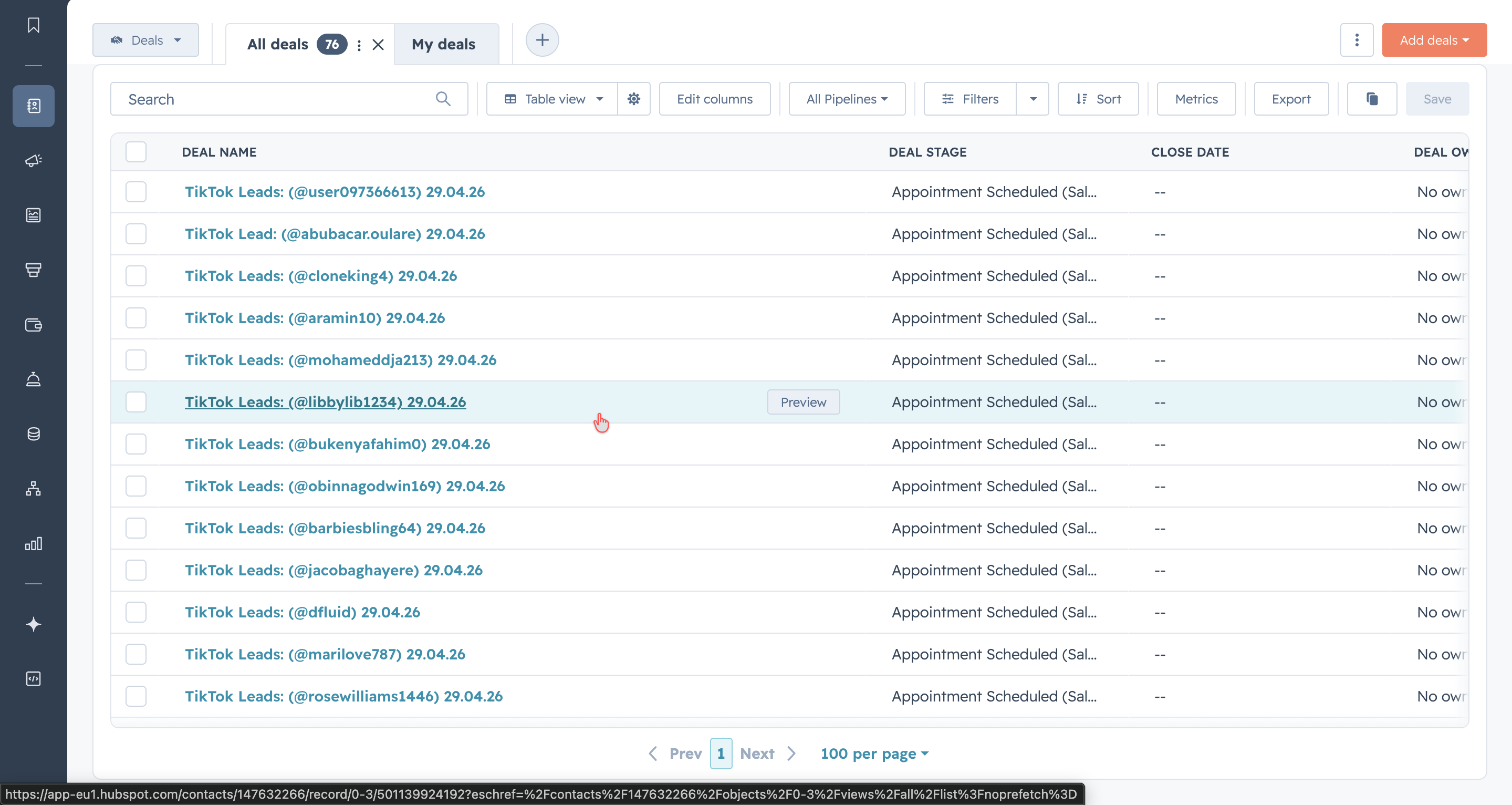
5. View and Manage Leads in HubSpot
When a TikTok comment matches your keywords, a deal is automatically created in HubSpot with all the relevant information.
1 Total Leads Generated
The campaigns table shows the number of leads generated for each campaign.
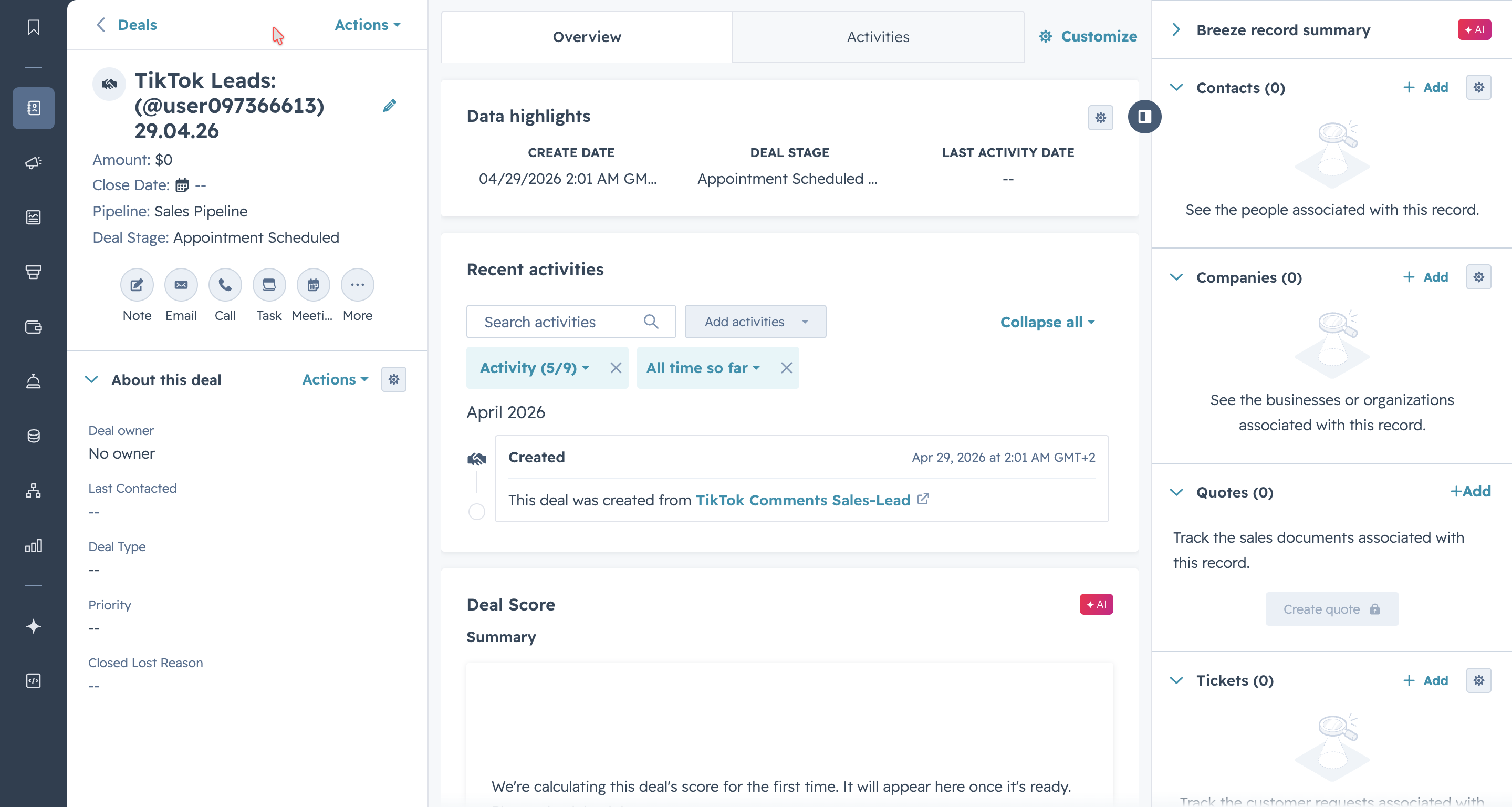
2 Open a Lead Deal
Click on any deal in HubSpot to view the TikTok user's comment, matched keyword, and profile link.
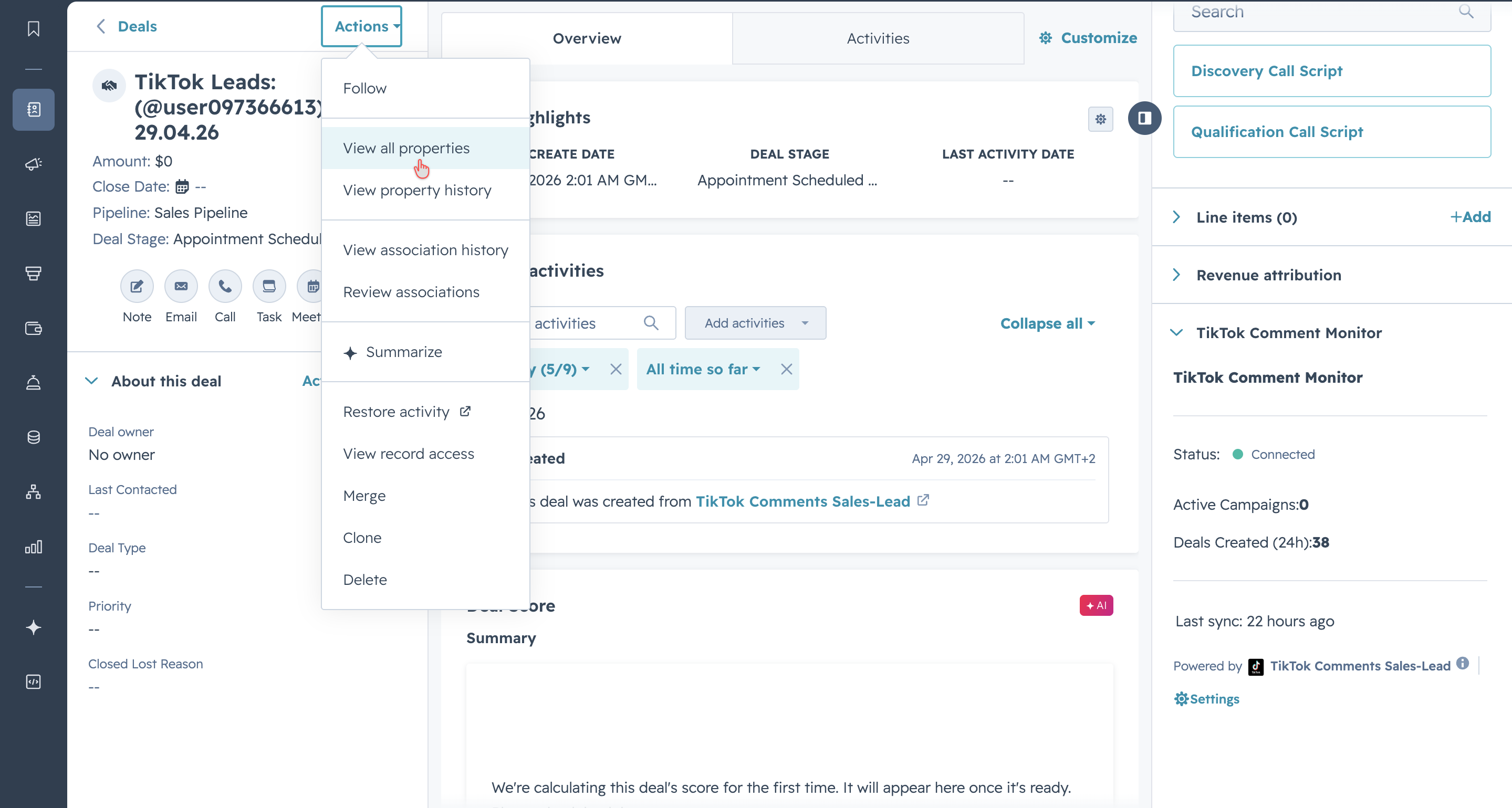
3 View Deal Properties
Each deal contains the TikTok username, original comment, matched keyword, and a direct link to the user's TikTok profile.
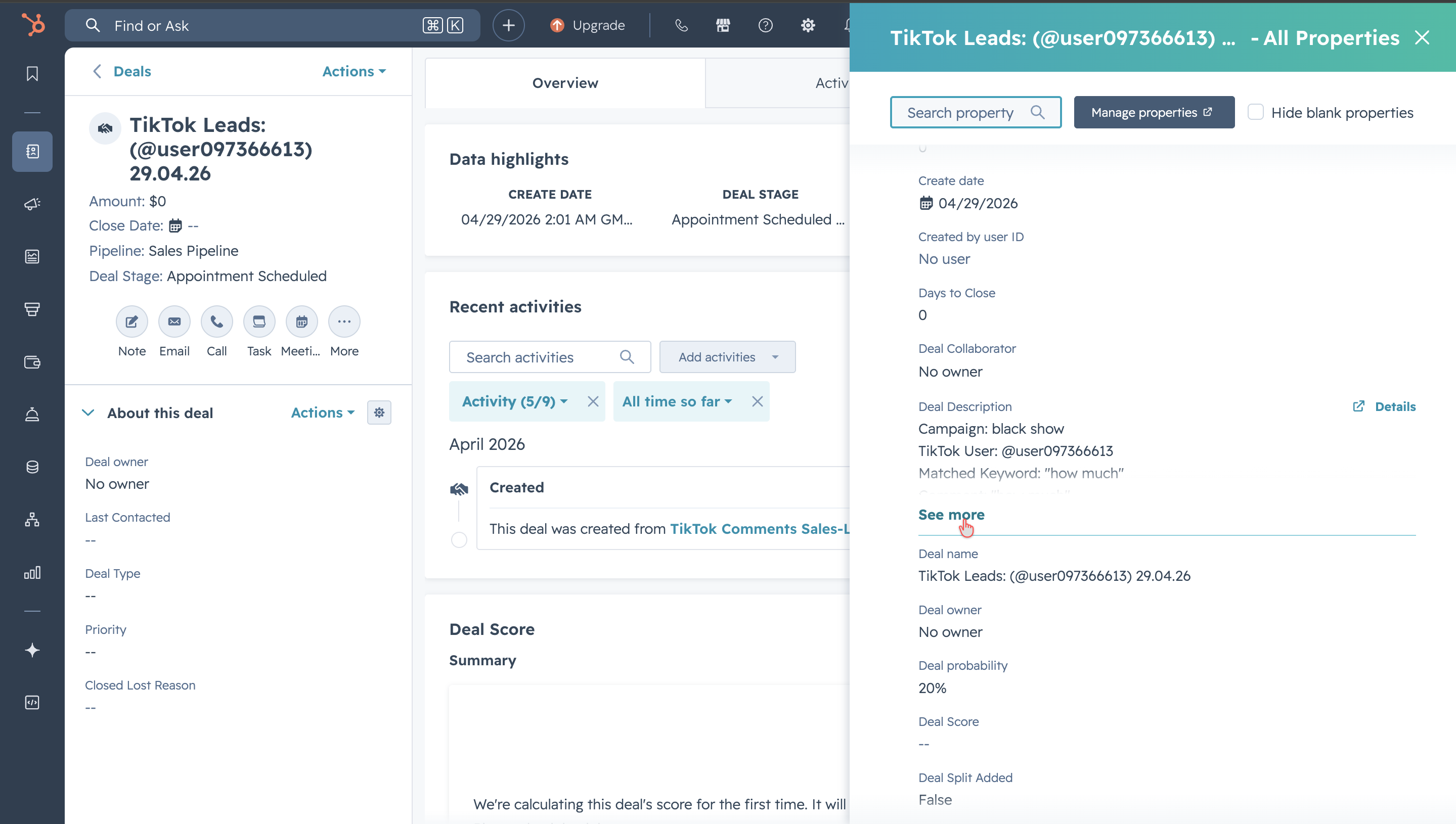
4 Extended Deal Details
Scroll to see the full deal description including campaign name, TikTok profile URL, and matched keyword.
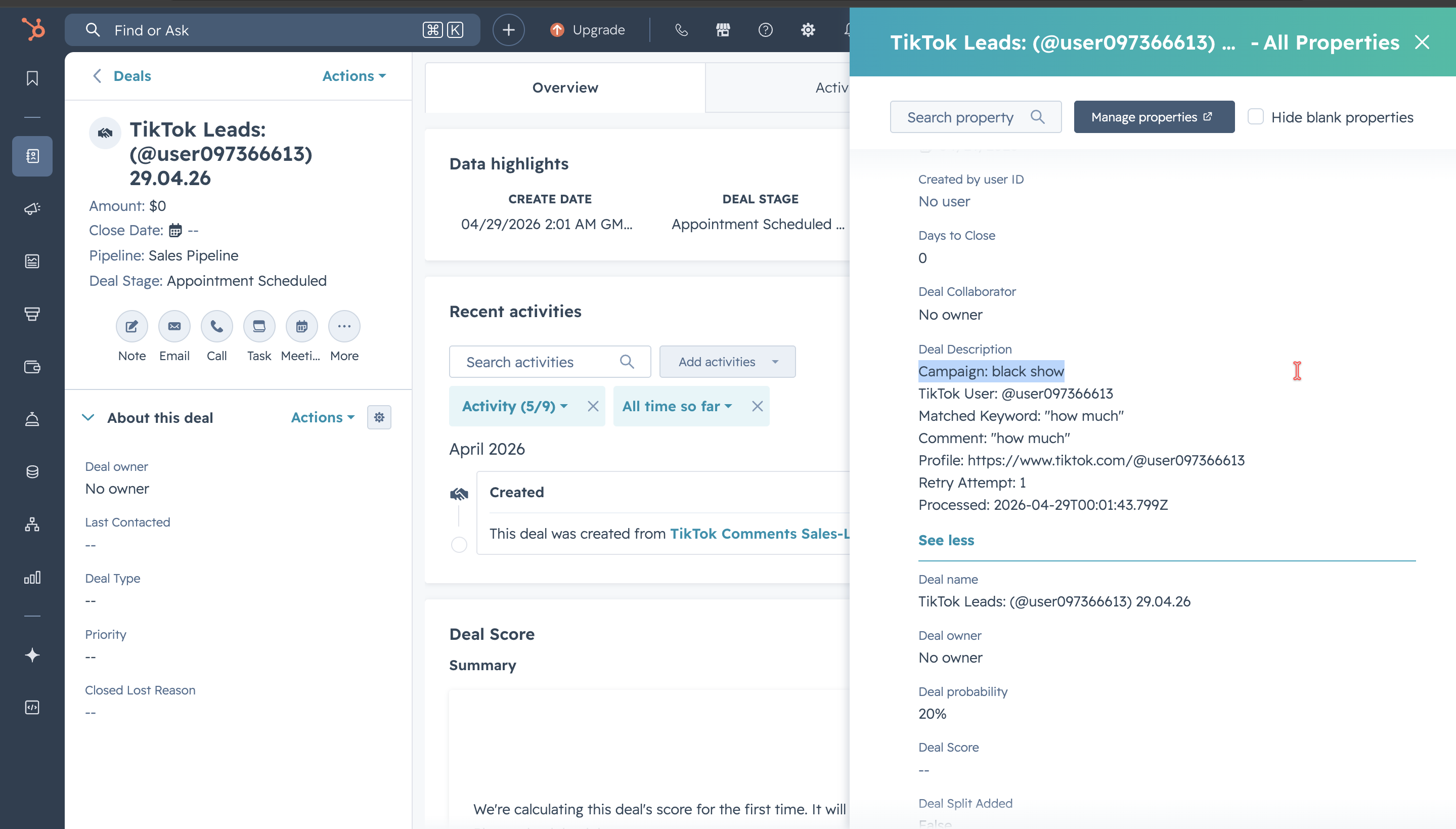
5 Complete Lead Information
The deal includes everything your sales team needs: who commented, what they said, which keyword triggered the lead, and how to reach them.
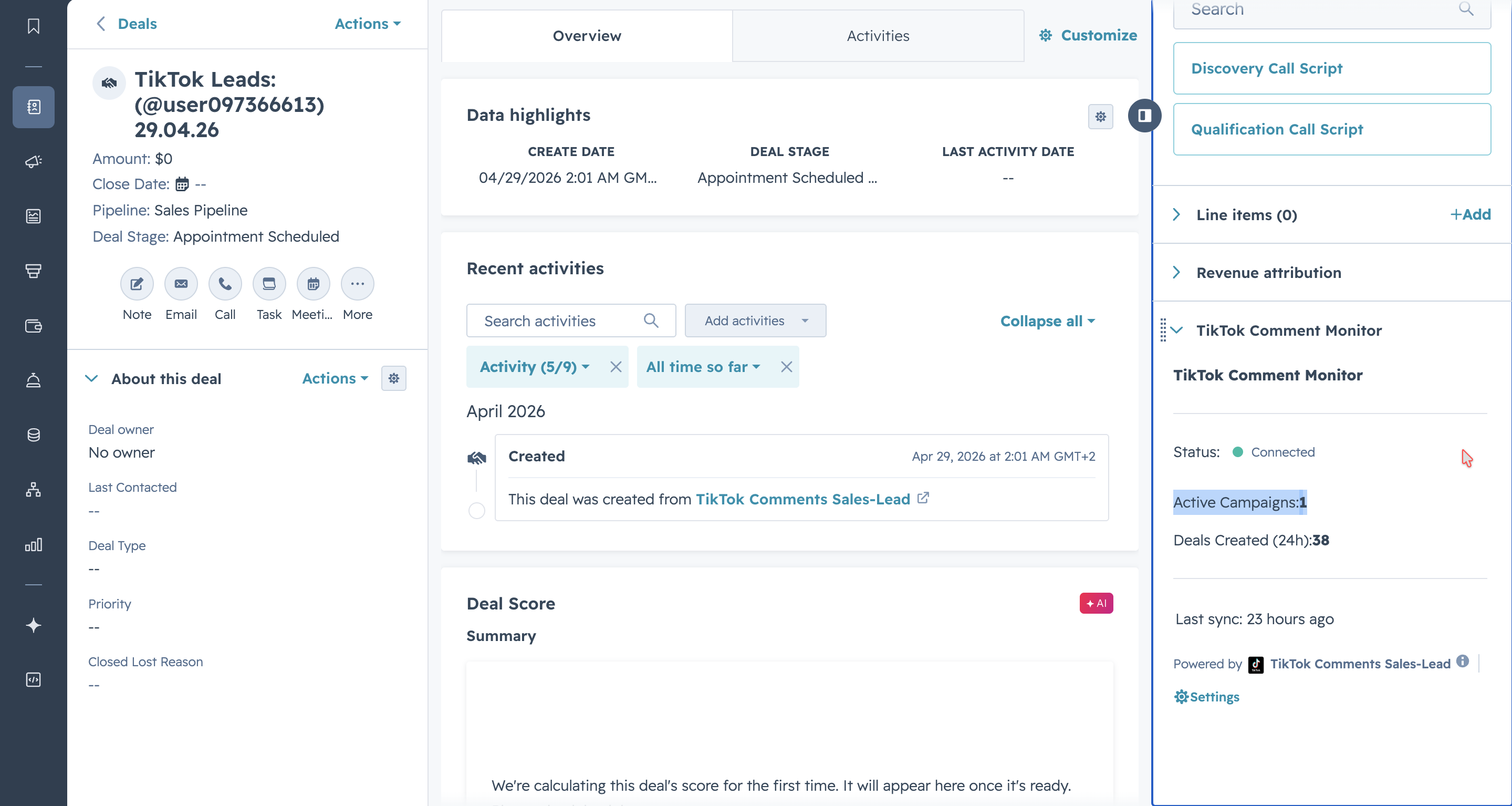
6 Sidebar Card
The TikTok Comment Monitor sidebar card appears on deal records, showing Apify connection status, active campaigns, and leads created in the last 24 hours.
6. Upgrade to Pro
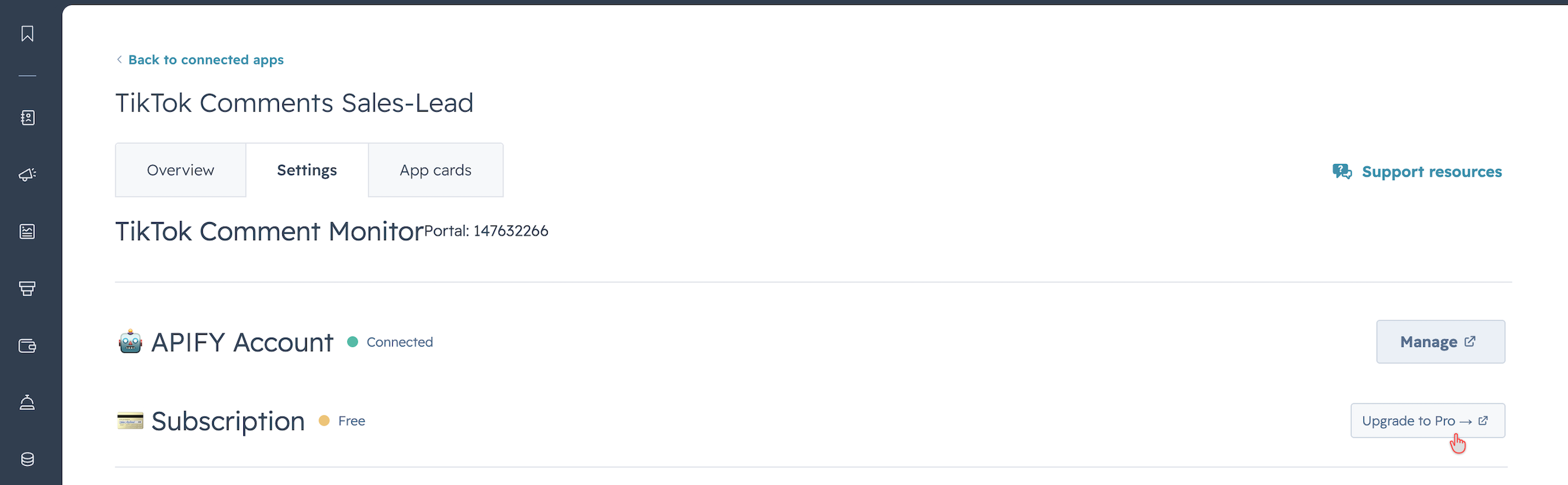
Free accounts are limited to 1 active campaign. Upgrade to Pro for unlimited campaigns.
1 Click Upgrade
In the subscription section, click "Upgrade to Pro". You'll be redirected to Gumroad to complete your purchase.
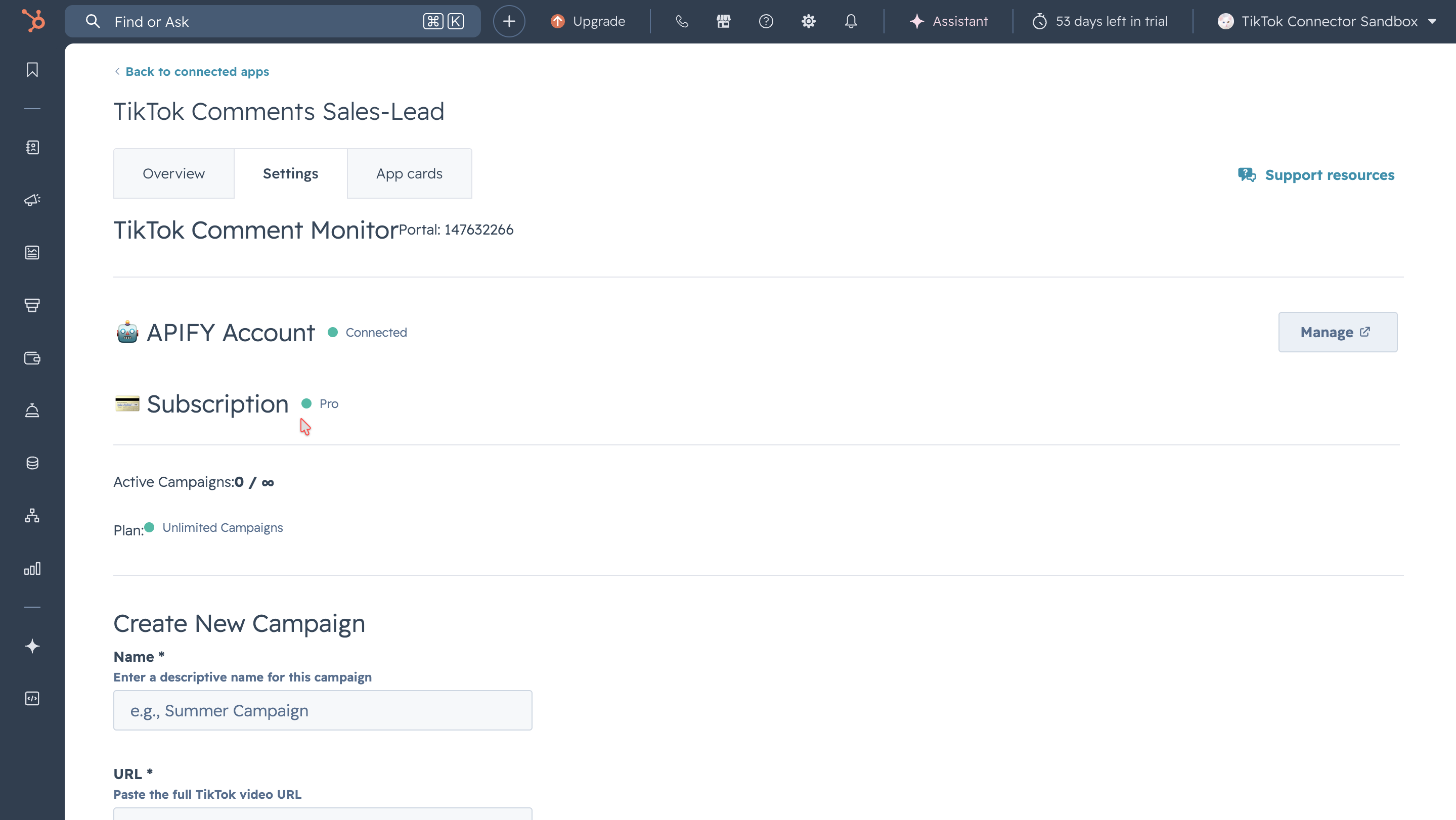
2 Pro Status Confirmed
After purchase, your subscription updates to "Pro" with unlimited campaigns.
7. Uninstall the App
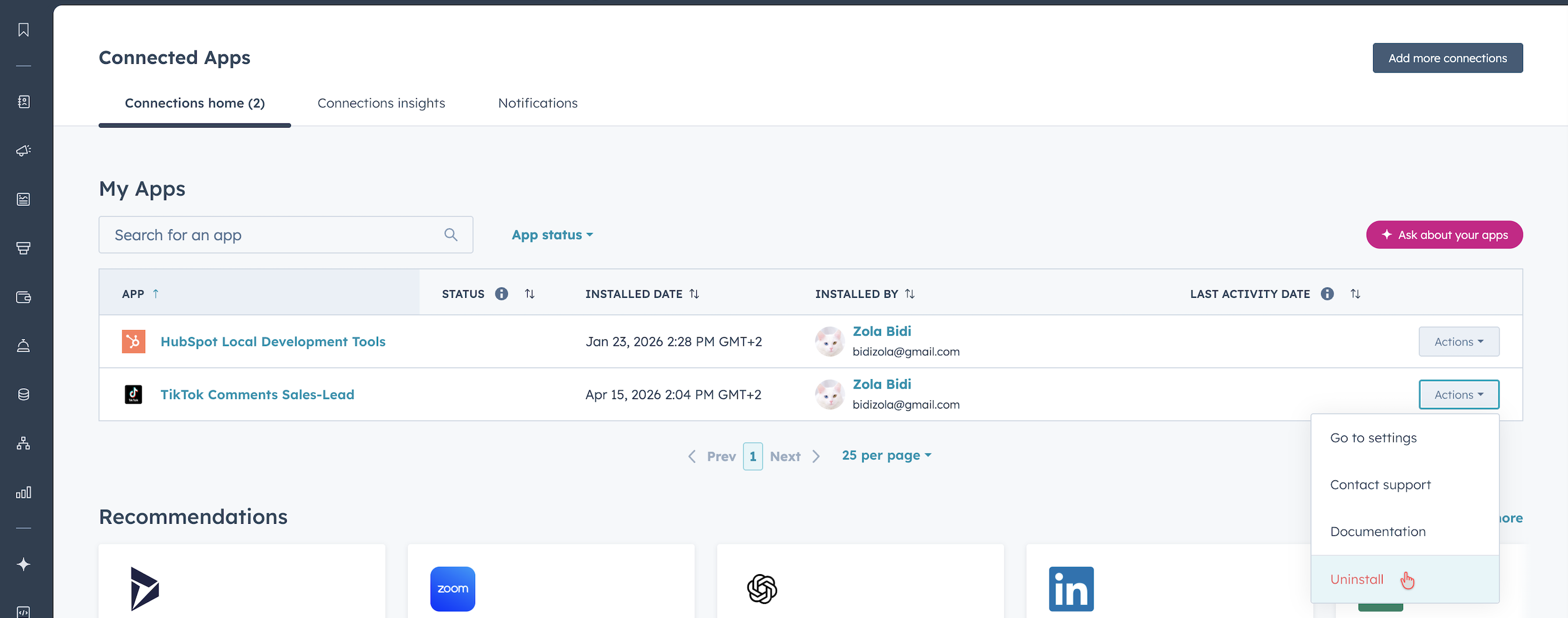
1 Find the App
Go to Settings → Connected Apps and find TikTok Comments Sales-Lead.
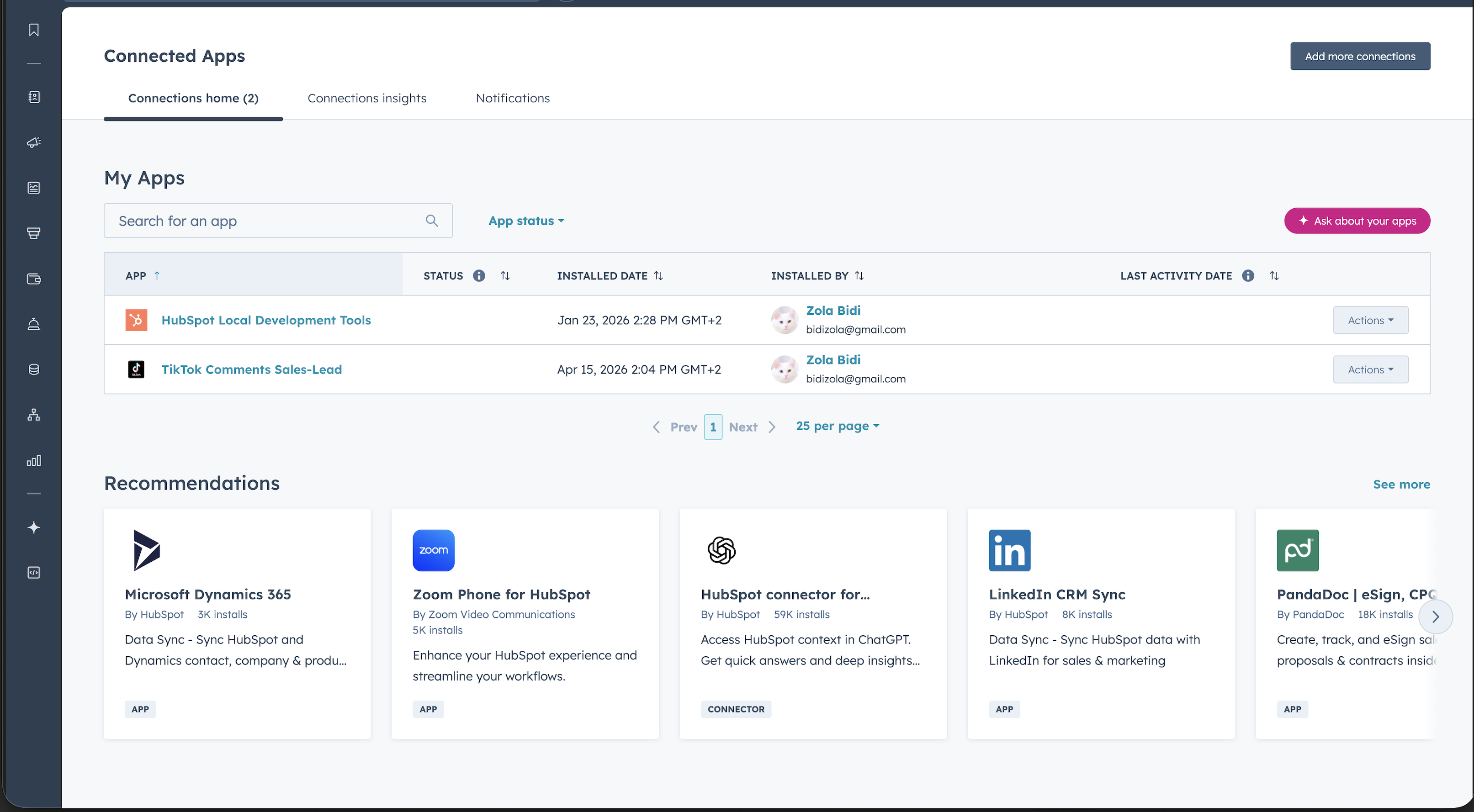
2 Click Uninstall
Click the "Uninstall" button.
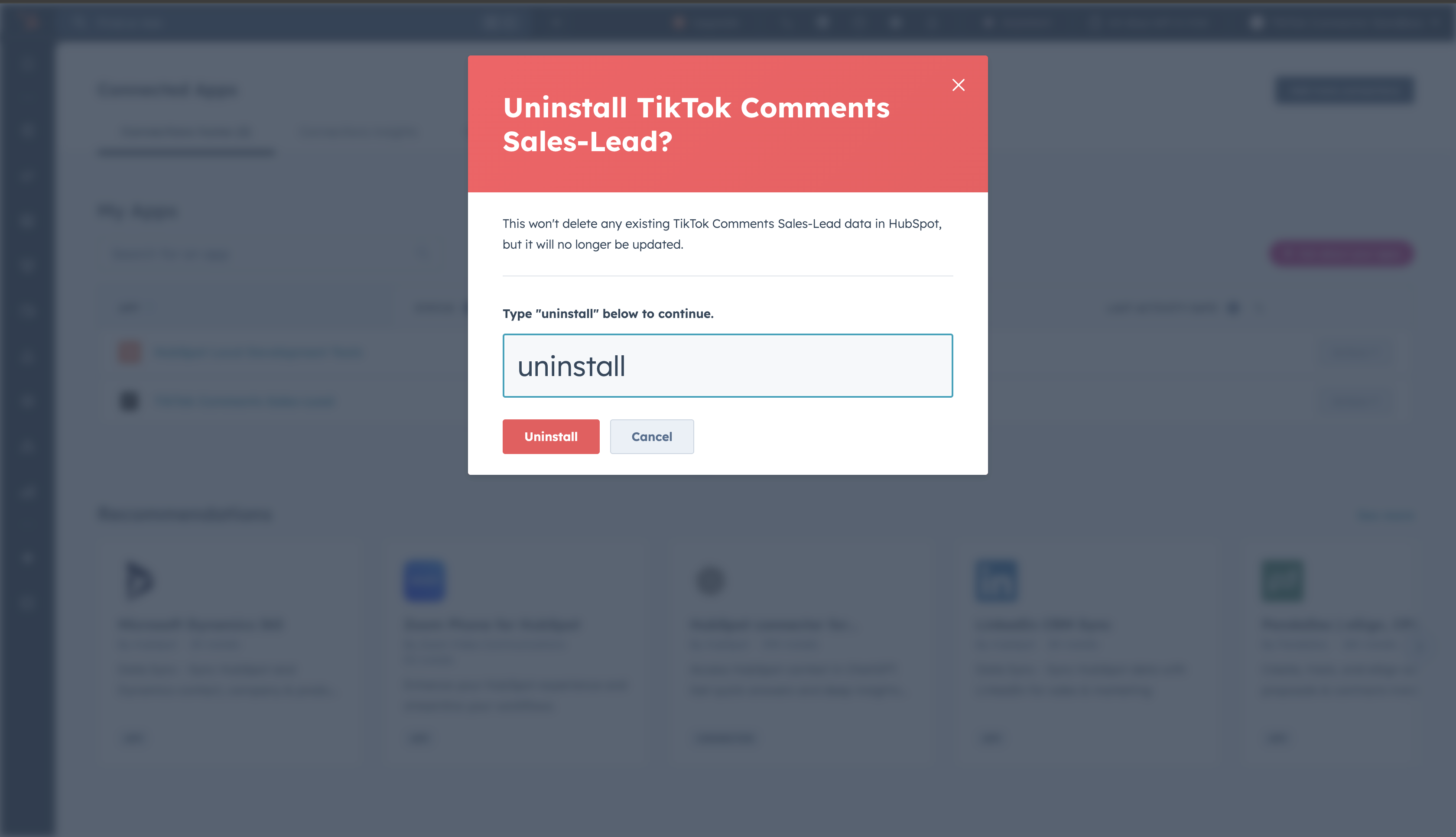
3 Confirm Uninstall
Type "uninstall" in the confirmation field.
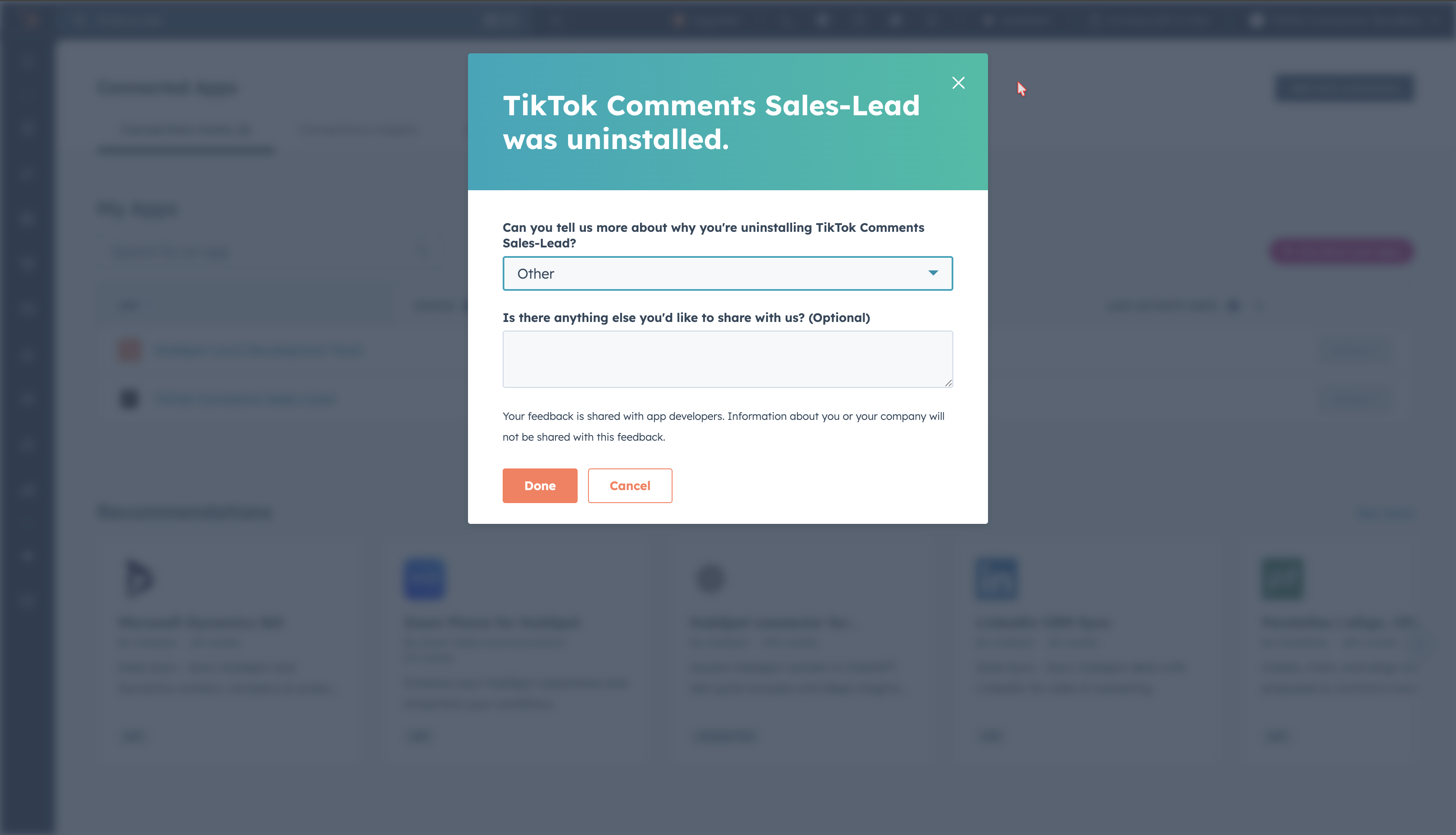
4 Provide a Reason
Select a reason for uninstalling.
- All campaign configurations are deleted immediately
- Your Apify API token is permanently removed
- Stored HubSpot OAuth tokens are deleted
- Deals already created in HubSpot remain in your CRM
Data Handling & Security
- AES-256-GCM encryption for all stored tokens
- Data isolation by HubSpot portal ID
- OAuth-only authentication
Support
Email: stainedglass@post.com